
Digital Productivity, Online planners, Planners
Excel Planning Template: Free Downloads & Tutorials
Mar
Okay so I just spent like three days downloading every free Excel planning template I could find because one of my clients asked me which one actually works and honestly? Most of them are garbage but I found some solid ones.
The Actually Good Free Templates You Should Start With
First thing – if you’re on Windows, you’ve got way more options than Mac users. I know, it’s annoying. I switched to Mac last year and immediately regretted it when half my favorite Excel features just… weren’t there. But anyway.
Microsoft’s built-in template library is actually decent now. Like, open Excel, click “New” and there’s this whole section. I tested their Project Timeline template last week and it’s surprisingly functional. Not pretty, but it works. You can filter by category which is helpful when you’re staring at 200 options at 11pm wondering why you do this to yourself.
The ones I keep coming back to:
- Simple Monthly Budget – sounds boring but the formulas actually work
- Project Task List – has conditional formatting that highlights overdue stuff in red
- Content Calendar – I use this for my blog and it’s solid
- Goal Tracker – weirdly motivating?
Where to Actually Download Decent Templates
Vertex42 is my go-to site. The guy who runs it is like obsessed with Excel in the best way. His templates have instructions that actually make sense. I downloaded his Weekly Schedule template and used it for probably six months before I even thought about customizing it. The formulas are clean, nothing breaks when you try to add rows, and he includes a little tutorial sheet in each file.
Template.net has free ones but you gotta create an account which is annoying. I did it anyway because their Academic Planner template is really good if you’re a student or teaching anything. Just use a throwaway email because they will spam you.
Oh and Spreadsheet123 – don’t let the terrible website design fool you. Their templates are actually professional grade. I think they’re made by accountants or something because the financial planning ones are super detailed. Maybe too detailed? Like I downloaded their Annual Budget template and there were tabs I still don’t understand.
What Makes a Template Actually Useful
This is gonna sound obvious but most templates fail at this – you need to be able to understand how it works within like 30 seconds of opening it. If I’m squinting at cells trying to figure out what formula is doing what, it’s going in the trash.
Good templates have:
- Clear headers in bold or with background colors
- Drop-down menus where you need to pick from options (use Data Validation for this)
- Locked cells for formulas so you don’t accidentally delete something important
- A separate instruction tab or at least some comments
- Reasonable color schemes that don’t look like a kindergarten art project
Bad templates have like 47 merged cells and formulas that reference other workbooks that don’t exist anymore. I once downloaded a “comprehensive life planner” that required three other Excel files to work properly. Deleted immediately.
My Current Setup That Actually Works
Okay so I use different templates for different things because trying to have one master template for everything is a nightmare. Learned that the hard way after spending an entire weekend building this massive planner that I used for exactly three days.
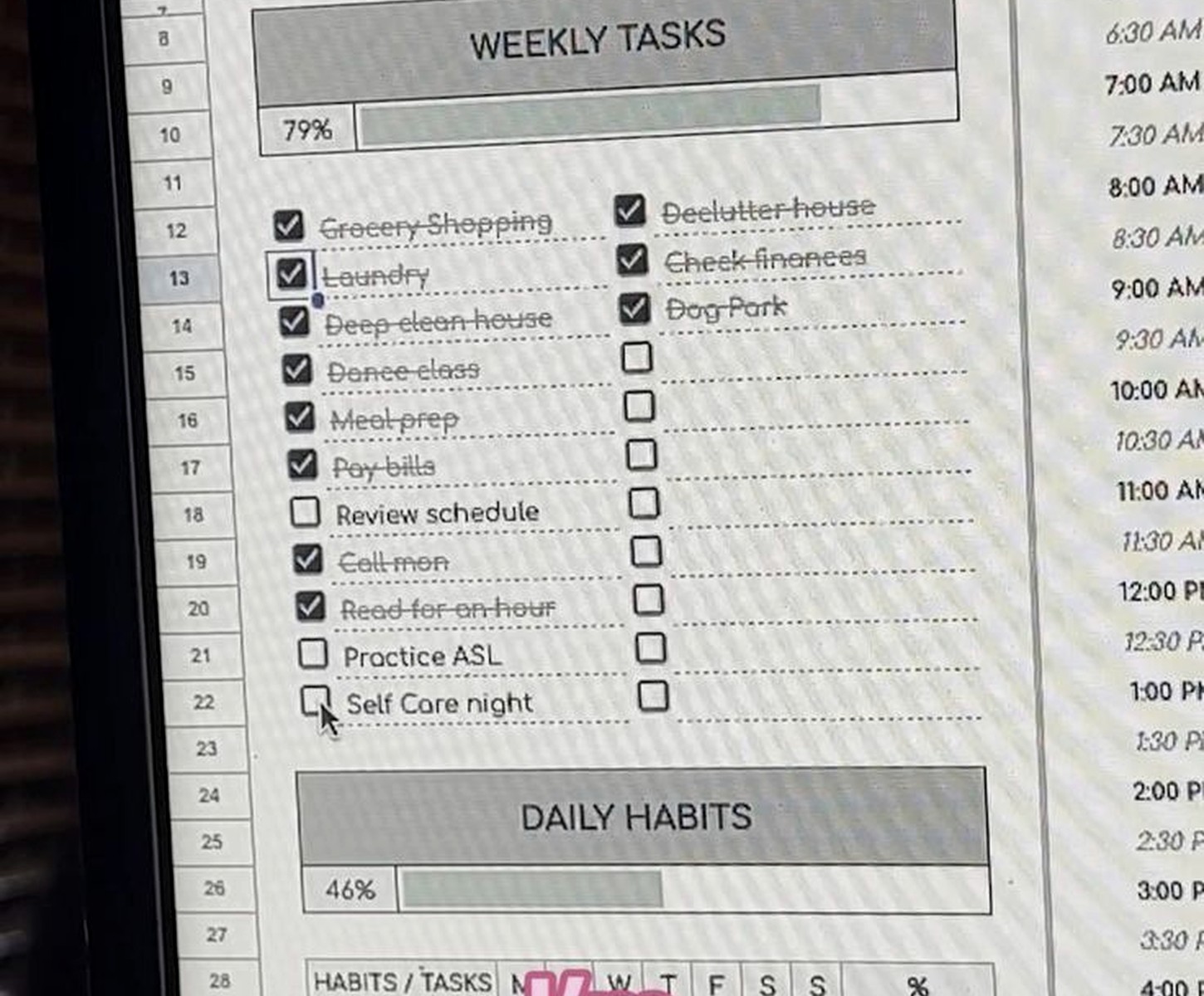
For weekly planning I modified Microsoft’s Weekly Task List. Added a column for energy level required because I learned I can’t schedule three high-focus tasks in one day without wanting to throw my laptop out the window. That column has drop-downs with High, Medium, Low. Game changer honestly.
For content planning I’m using a modified version of the Vertex42 Content Calendar. Added social media columns and a status dropdown. My dog knocked over my coffee on the keyboard last month while I was updating it and somehow that made me realize I needed better backup systems but that’s another story.
How to Customize Without Breaking Everything
This is where people mess up. You download a template, immediately start deleting columns and moving things around, and suddenly all the formulas show #REF errors.
Here’s what I do now:
Save the original template in a “Templates – Original” folder. Don’t touch it. Make a copy called “Working Version” or whatever. Now you can mess with that one without panicking when you break something.
Before changing anything, click on cells that have formulas and look at the formula bar. See what they’re referencing. If a formula in cell E5 is pulling data from C5, you can’t just delete column C without updating that formula.
Add columns on the right side first. It’s safer. Most templates have their main formulas in the first few columns, so adding stuff to the right usually won’t break anything. I learned this after destroying a perfectly good budget template by inserting a column in the middle of a SUMIF formula.
Excel Features That Make Templates Better
Okay wait I forgot to mention – conditional formatting is your friend. It sounds complicated but it’s not. Basically you can make cells change color based on what’s in them. Like if a due date is in the past, make it red. If a task is marked “Done,” make the whole row gray.
To set it up: select your cells, go to Home > Conditional Formatting > New Rule. Pick “Format only cells that contain” and set your condition. I have this set up in my project tracker where anything overdue turns orange and I cannot tell you how much this has saved me from missing deadlines.
Data Validation is the other thing. This creates dropdown menus so you’re not typing the same things over and over. Select a cell, go to Data > Data Validation, pick “List” and type your options separated by commas. I use this for status columns (Not Started, In Progress, Complete) and priority levels (High, Medium, Low).
Freeze Panes is essential if your template has lots of rows. Click on the row below your headers, go to View > Freeze Panes > Freeze Panes. Now when you scroll down, your headers stay visible. This seems small but it’s the difference between a usable template and one that makes you wanna scream.
Specific Templates I’m Using Right Now
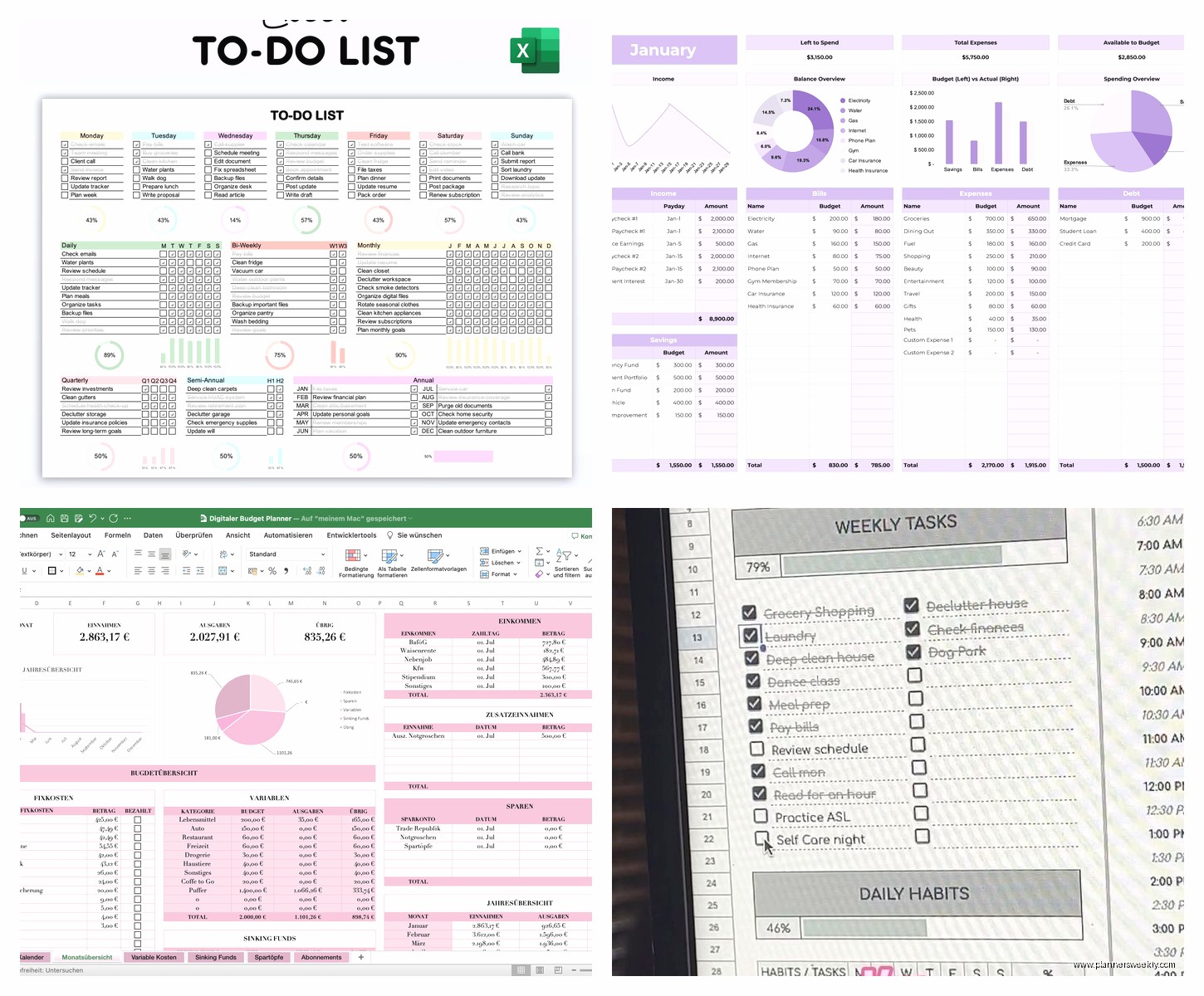
My daily planning template is honestly just a modified version of the Simple To-Do List from Microsoft. But I added time blocking columns. Left column has time slots from 6am to 10pm in 30-minute blocks. Next column is the planned task. Third column is what I actually did because spoiler alert – they’re never the same. Fourth column is notes about why I got derailed.
This template looks super basic but it’s taught me that I consistently overestimate how much I can do between 2-4pm. That’s apparently when my brain stops working but I kept scheduling important stuff there. Now I know to put easy tasks in that slot.
For monthly planning I use a modified Vertex42 Monthly Calendar. Added a goals section at the top with three categories: Work, Personal, Health. Under each category there’s space for 2-3 specific goals. Below that is the actual calendar grid. At the bottom I have a review section for end of month reflection.
The calendar grid itself has conditional formatting – weekends are light blue, current day is yellow, days with deadlines are pink. Took me like 20 minutes to set up but now it’s automatic.
Project Planning Templates
For actual project management I’m gonna be honest – Excel kinda sucks compared to dedicated tools. But if you’re stuck with it or just prefer spreadsheets, the Gantt Chart templates can work.
I tested like eight different Gantt templates and the best one was from Vertex42 again. It has automatic date calculations so when you change the start date, all the dependent tasks shift automatically. The chart itself is made with conditional formatting which is clever – no actual chart object that gets wonky when you add rows.
But real talk – if you’re managing complex projects with multiple people, just use Asana or Trello or something. I tried managing a client project with 12 deliverables in Excel and it was miserable. Excel is better for personal planning and simple team stuff.
Budget and Finance Templates
The Personal Monthly Budget template from Microsoft is actually solid. Has sections for income, fixed expenses, variable expenses, and savings goals. The formulas calculate everything automatically and there’s a nice summary at the top showing income vs expenses.
I modified mine to have a “Actual vs Planned” column because I was lying to myself about spending. Turns out I spend like $200 more on food than I thought. Having that comparison column made it obvious.
For yearly planning, the Annual Budget template from Spreadsheet123 is detailed but worth it. Has monthly breakdowns, year-to-date totals, and variance calculations. Little overwhelming at first but once you set it up, you just update the numbers each month.
Oh and another thing – these budget templates work better if you link them to your bank exports. Most banks let you download transactions as CSV files. You can copy that data into Excel and use VLOOKUP or SUMIF to automatically categorize expenses. This is getting into more advanced stuff but it’s not as hard as it sounds.
Habit and Goal Tracking
I’m currently using a modified Habit Tracker template that I found on Vertex42. It’s basically a grid with dates across the top and habits down the left side. You mark an X or check mark for each day you do the habit.
Added conditional formatting so after 3 consecutive days, the cells turn green. After 7 days, they turn darker green. This is weirdly motivating. Seeing that streak of green makes me not want to break it.
Also added a monthly summary section that counts total days for each habit. Uses COUNTIF formulas to count the marks. So at the end of the month I can see “exercised 18 days, meditated 22 days” whatever.
My client actually asked me about this last week and I sent her my template. She’s been using it for two weeks and says it’s helping. The visual aspect of seeing the Xs accumulate apparently does something to your brain.
Things That Don’t Work Well in Excel
Long-form journaling or note-taking. Just no. Use a proper notes app or actual journal. I tried keeping a daily journal in Excel once and it was terrible. Cells aren’t meant for paragraphs.
Collaboration with multiple people editing at once. Excel Online has real-time collaboration now but it’s glitchy. If you need actual team planning, use Google Sheets instead. I know this is an Excel guide but I gotta be honest about limitations.
Anything requiring lots of images or visual layout. Excel is spreadsheets, not design software. If your template needs lots of visual elements, use Canva or PowerPoint or something.
Backing Up Your Templates
Save your working templates to cloud storage. I use Dropbox but OneDrive or Google Drive work fine. Set it to auto-save. I lost three months of budget data once when my laptop died and I hadn’t backed up in weeks. Don’t be me.
Also save major versions with dates in the filename. Like “Monthly-Budget-2024-Jan-v2.xlsx” so you can go back if you mess something up. I have like 15 versions of my content calendar because I keep tweaking it and sometimes the tweaks make things worse.
For templates you use daily, keep a backup on your phone if you have Excel mobile. It’s limited but you can at least view and make small updates. Saved me during a meeting when I needed to check my schedule and my laptop was dead.
This is gonna sound paranoid but I also keep printed copies of my monthly plans. Like actual paper. Because technology fails at the worst times. My internet went out last month during a storm and I couldn’t access any cloud files. Having a printed version of my schedule meant I knew what was due that week.
