
Digital Productivity, Online planners, Planners
Free Digital Calendar Planner: Best Apps & Templates
Apr
Okay so I’ve been deep in the digital calendar planner world for like three months now and honestly it started because my paper planner got coffee spilled on it and I just… gave up and went digital. Best accident ever maybe?
Google Calendar But Actually Using It Properly
Look, Google Calendar is free and you already have it, which is why I’m starting here. But most people use it wrong and then complain it doesn’t work for planning. The trick is setting up multiple calendars within your account. I’ve got one for work appointments, one for personal stuff, one called “maybe commitments” for things I haven’t fully decided on, and one for habit tracking which sounds weird but stick with me.
The color coding is what makes it actually functional. My work stuff is blue, personal is green, and I made my workout blocks this aggressive orange so I can’t pretend I don’t see them. You can toggle calendars on and off which is super helpful when you just need to see work stuff or just personal without the visual clutter.
What nobody tells you is that you can set default event durations. Mine used to default to one hour and I’d book a “quick call” and accidentally block out way too much time. Now my defaults are 15 minutes and I adjust up as needed. Game changer for not over-scheduling yourself.
The Template Thing Everyone Misses
Google Calendar doesn’t have built-in templates but you can fake it. I create recurring events for my weekly review time, my meal planning block, even my “don’t schedule anything here” focus time. Then you’ve essentially got a template that repeats. If you need actual different weekly structures, you gotta use multiple calendars and toggle them based on your schedule that week. It’s a workaround but it works.
Notion Calendar (Used To Be Cron)
Wait I forgot to mention this one and it’s actually become my main thing lately. Notion bought this app called Cron and rebranded it to Notion Calendar and it’s completely free. The interface is so much cleaner than Google Calendar’s, and it connects to your Google account so all your stuff syncs.
The keyboard shortcuts are insane. Like, I can create a new event by just typing Command+N and then I type “coffee with Sarah tomorrow at 2pm” and it figures it out. No clicking through a million fields. My cat walked across my keyboard yesterday and somehow scheduled three appointments but that’s beside the point.
The time zone features are actually useful if you work with people in different places. It shows multiple time zones at once in the sidebar and converts everything automatically. I was trying to schedule something with someone in London last week and instead of doing math in my head at 11pm, the app just handled it.
The Catch With Notion Calendar
It’s really designed for people who live in their calendar. If you’re more of a task list person, this might feel like overkill. But if you’re trying to time-block your day or you have a lot of meetings, this is probably the best free option right now. It’s also only on Mac, Windows, and iOS currently, so Android users are out of luck which is annoying.
Structured App For The Rigid Planners
This is gonna sound weird but Structured is technically a daily planner app that works with your calendar. It’s free with premium features, and the free version is actually pretty robust. You add time-blocked tasks to your day and it shows them in a timeline view that’s super visual.
I use this when I need to be really strict about my time. Like, “write for 90 minutes, then break for 20 minutes, then admin work for an hour.” It buzzes when it’s time to switch tasks and honestly sometimes I ignore it but having that structure there keeps me from falling into a YouTube hole for three hours.
The free version limits how many days you can plan ahead which is actually kind of nice? Forces you to focus on today and tomorrow instead of obsessively planning three weeks out and then never looking at it again. The premium is like $10 a year during sales which is nothing if you end up liking it.
Microsoft Outlook Calendar If You’re Corporate
I know this sounds boring but if you’re already in the Microsoft ecosystem for work, just use Outlook Calendar. The integration with Teams and email is seamless, and you can see when people are free without the back-and-forth email chains.
The categories function is basically color coding but you can assign multiple categories to one event. So a “client meeting about the new project” could be tagged as both “client work” and “project alpha” and show up when you filter for either. This is actually more flexible than Google Calendar’s approach.
My client canceled last week so I spent an hour just playing with the different views and the “My Day” sidebar is pretty useful. It shows your calendar, to-do list, and weather all in one glance. Very 2010 dashboard energy but it works.
Fantastical But Only If You’re Already Apple Everything
Okay so Fantastical used to be my top recommendation but they switched to a subscription model that’s like $40 a year and honestly for most people that’s not worth it when free options exist. But the free version still works, it’s just limited.
The natural language input is still the best out there. You can type “lunch with mom next Tuesday at noon at that Italian place” and it creates the event, sets the time, adds the location. It parses complex sentences better than anything else I’ve tested.
The free version gives you basic calendar functions but locks things like calendar sets, templates, and some of the fancier views. If you just need a prettier calendar than Apple’s default and you like the natural language thing, the free version might be enough. But honestly Notion Calendar does the natural language thing almost as well now, so…
The Template Situation Nobody Talks About Clearly
Most calendar apps don’t have great template features built in, which is wild to me. Here’s what I’ve figured out through trial and error and probably wasting too much time on this:
For recurring weekly templates, create a separate calendar in Google Calendar called “Template” or whatever. Build out your ideal week with all the blocks you want. Set everything to repeat weekly. Then you can toggle that calendar on to see your template, and either manually create events that match, or duplicate events from the template to your main calendar. It’s clunky but it’s free.
The Canva Route For Visual People
Wait this is totally different but if you want actual designed templates that you then use as background images or reference, Canva has hundreds of free digital planner templates. You can customize them, download as PDFs, and then either print or use them in apps like GoodNotes or Notability on iPad.
I made a monthly spread in Canva once while watching that show Beef (so good by the way), saved it as my desktop background, and just referenced it throughout the month. Not interactive but sometimes you just need to see the month laid out pretty to make sense of it.
Apple Calendar Is Fine Actually
I know it’s basic but Apple Calendar is genuinely underrated. It syncs across all your Apple devices instantly, it’s clean, it doesn’t try to do too much. Sometimes simple is better, you know?
The travel time feature automatically adds drive time to events if you put in a location. So if I have “dentist at 2pm” with the address, it’ll remind me to leave at 1:45pm based on current traffic. That’s saved me from being late so many times.
You can also share calendars with family members which is huge if you’re coordinating schedules. My friend shares her kids’ activity calendar with her partner and it automatically updates when she adds new stuff. No more “did you know about soccer practice” arguments apparently.
Morgen For The Everything App Dream
Morgen is this app that’s trying to be an all-in-one calendar and task manager. Free version is pretty generous. It connects to basically every calendar service plus your task apps like Todoist and integrates them all in one view.
The scheduling links feature is free, which is wild because Calendly charges for that. You can create a “book time with me” link and send it to people and they pick from your available slots. Super useful for client meetings or coffee chats or whatever.
The interface takes some getting used to. It’s trying to show you so much information at once that it can feel overwhelming at first. I used it for about two weeks before it clicked, and now I really like being able to see my calendar events and my task deadlines in the same view. Helps me actually schedule time to do the tasks instead of just having an anxiety-inducing list.
The Hybrid Approach That Actually Works
Here’s what I landed on after testing everything: Google Calendar as my main source of truth because it syncs everywhere and everyone can access it. Notion Calendar as my daily interface because it’s prettier and faster. And then I keep a simple text file with my weekly template that I reference every Sunday when planning the week ahead.
The text file thing sounds low-tech but it’s just a list like “Monday: deep work morning, meetings afternoon, workout 5pm” for each day. I glance at it and manually block time in my calendar accordingly. Takes maybe 10 minutes and keeps me from having to remember what my ideal week structure is supposed to look like.
Oh And Another Thing About Reminders
Everyone sets reminders wrong. Don’t set them for when the thing starts. Set them for when you need to start preparing. If you have a video call at 2pm, set the reminder for 1:55pm so you can grab water, close unnecessary tabs, find your notes, whatever. The number of times I’ve joined calls flustered because the reminder went off exactly at start time and I wasn’t ready…
What About The Aesthetic Planners
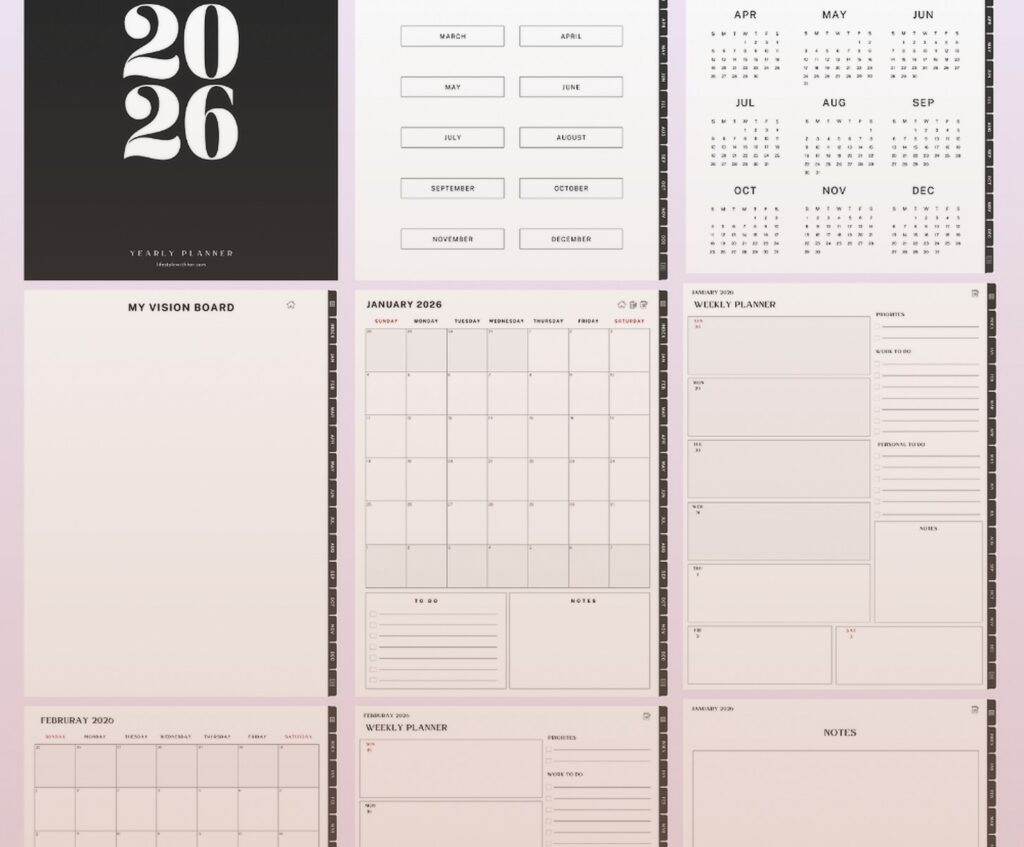
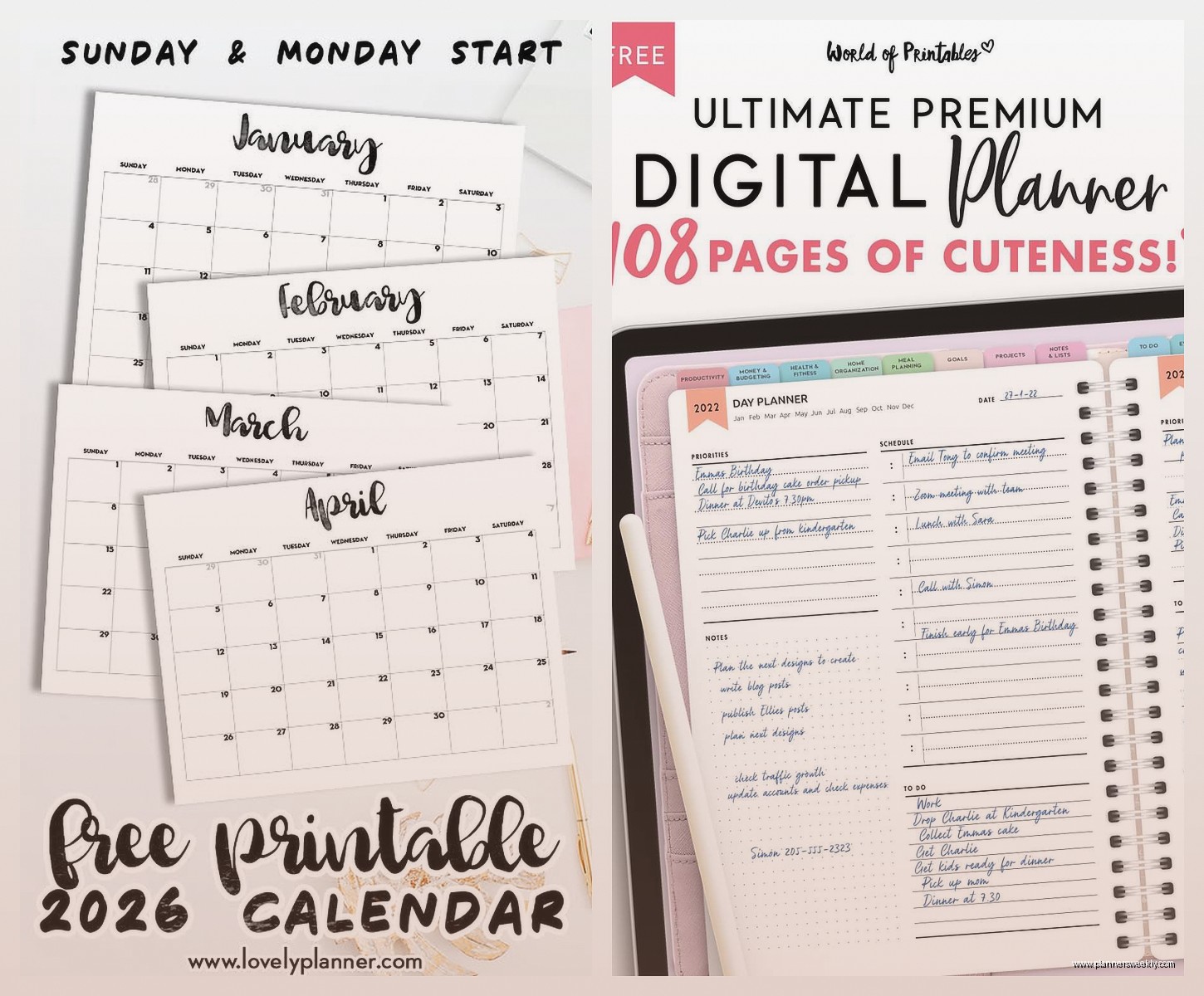
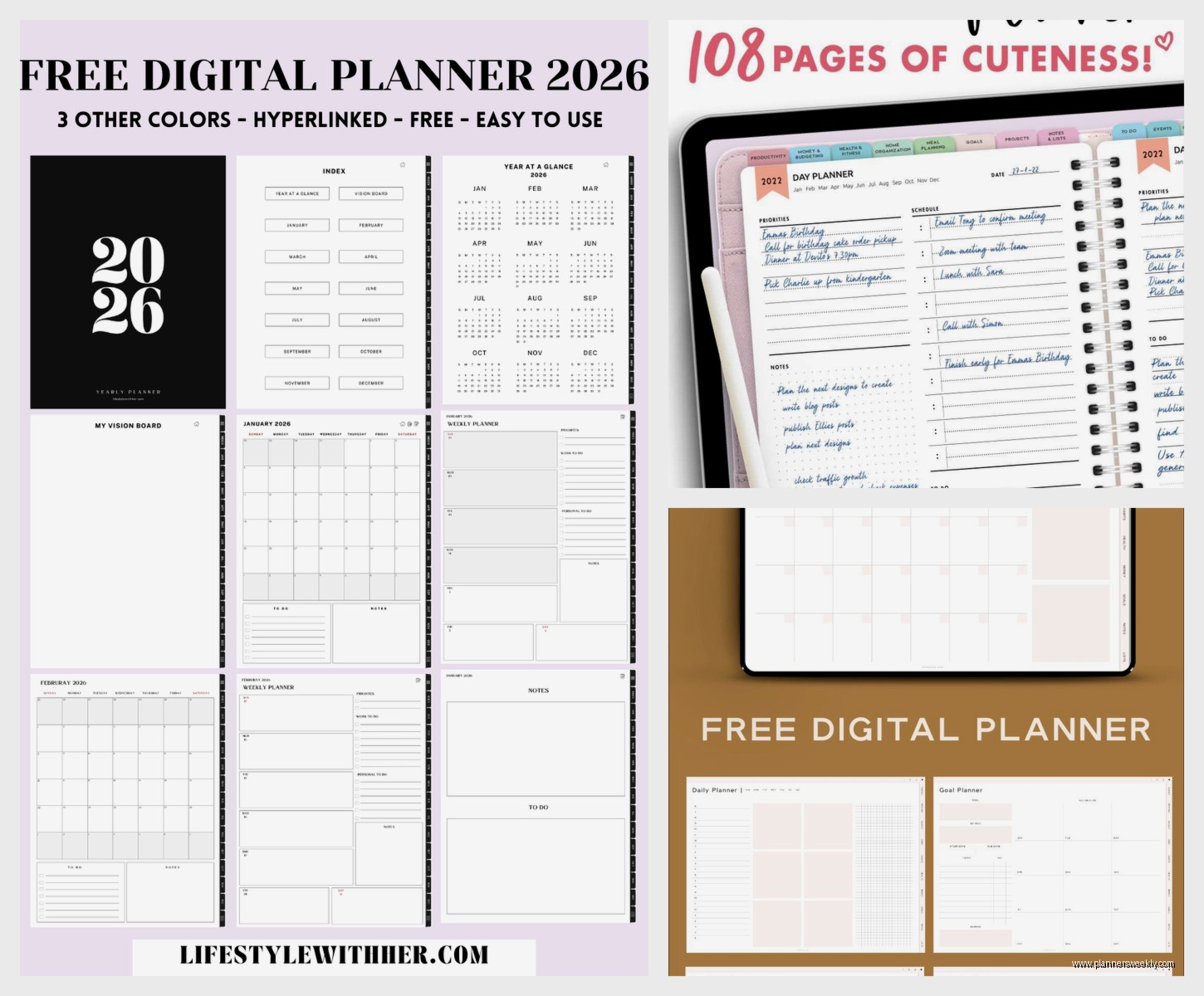
There’s this whole world of digital planners that are basically PDFs designed to look like paper planners that you use with stylus apps. They’re pretty but honestly not very functional for actual calendar planning. Better for journaling or habit tracking or creative planning stuff.
If you want that aesthetic but functional, try Google Calendar with a Chrome extension like “Dark Reader” or customize the colors to be more muted and pleasing. Or use Notion’s calendar database feature where you can make things look however you want with covers and icons and whatever. It’s more work to set up but very customizable.
The Real Answer Nobody Wants To Hear
The best calendar planner is whichever one you’ll actually open every day. I know that’s annoyingly vague but it’s true. I’ve watched people download Notion and spend 6 hours building the perfect setup and then never touch it again. Meanwhile someone else is crushing it with basic Apple Calendar because they actually use it.
Start with whatever’s already on your device. Google Calendar if you’re Android, Apple Calendar if you’re iOS, Outlook if you’re work-mandated into Microsoft. Use it for two weeks. If you find yourself wishing it did something specific, then look for an app that does that thing. Don’t app-hop looking for perfect before you even know what you need.
The free options are genuinely good enough now that paying for premium calendar apps doesn’t make sense unless you have very specific needs like advanced scheduling automation or you’re managing multiple team calendars or something. I tested premium versions of like five apps and ended up back on free tools because they just… work fine?
Also sync everything to one main calendar even if you use multiple apps to view it. That redundancy has saved me multiple times when an app glitches or I switch devices or whatever. Google Calendar as the backend, whatever pretty interface you want as the frontend. That’s the move.
