
Digital Productivity, Online planners, Planners
Free Excel Weekly Schedule Template: Downloads & Guide
Mar
Okay so I just spent like three hours this morning going through Excel weekly schedule templates because my coaching client asked me which one actually works and honestly? Most of them are terrible. But I found a few that don’t make me want to throw my laptop.
The Basic Microsoft Template That’s Actually Free
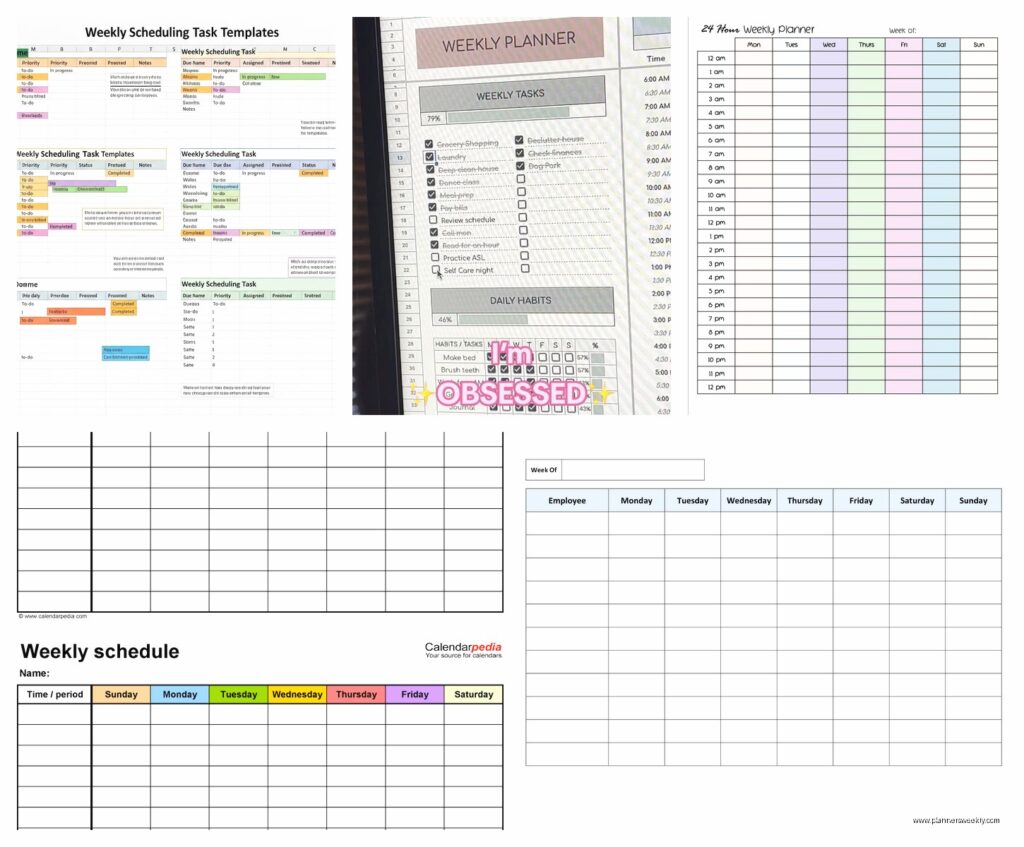
So Microsoft has this built-in template library that nobody uses for some reason. You go to File > New in Excel and search “weekly schedule” and there’s like 20 options. The one I keep coming back to is called “Weekly Schedule” which yeah super creative naming but whatever it works.
It’s got time slots from 7am to 7pm in 30-minute blocks which is kinda limiting if you’re a night owl but you can just add rows. I literally just tested this last week with my own schedule and the color coding doesn’t make me want to cry which is saying something. It auto-fills the dates when you change the week which is actually pretty smart.
The annoying part is it doesn’t sync with anything. Like it’s just sitting there in Excel being a spreadsheet. But if you save it to OneDrive it’ll at least update across devices which I guess is better than nothing.
How to Actually Download It
- Open Excel (not the online version, the actual desktop app)
- File > New
- Type “weekly schedule” in the search box
- Pick the one that says “Weekly appointment calendar” or just “Weekly Schedule”
- Click Create
Takes like 30 seconds. My dog was barking at the mailman the whole time I was doing this and I still managed to figure it out so it’s pretty straightforward.
Vertex42’s Templates Are Surprisingly Good
Wait I forgot to mention Vertex42. They have this whole library of free Excel templates and their weekly planner one is actually really customizable. I found it because someone on Reddit recommended it and I was like yeah sure another random website but it’s legit.
Their “Weekly Schedule Template” has options for different time increments which is huge if you don’t work in perfect 30-minute blocks. You can do 15-minute slots or hourly or whatever. Plus it prints really well which matters if you’re one of those people who still uses paper planners alongside digital stuff.
What Makes It Different
The Vertex42 one has conditional formatting built in so you can color-code by category and it actually looks professional. I used it for a whole month tracking my client sessions and content creation time and it didn’t fall apart which is more than I can say for some templates I’ve tried.
Oh and another thing, it has a notes section at the bottom of each day which sounds basic but so many templates skip this. Like where am I supposed to write “remember to email Sarah about the thing” if there’s no notes section?
The Google Sheets Workaround
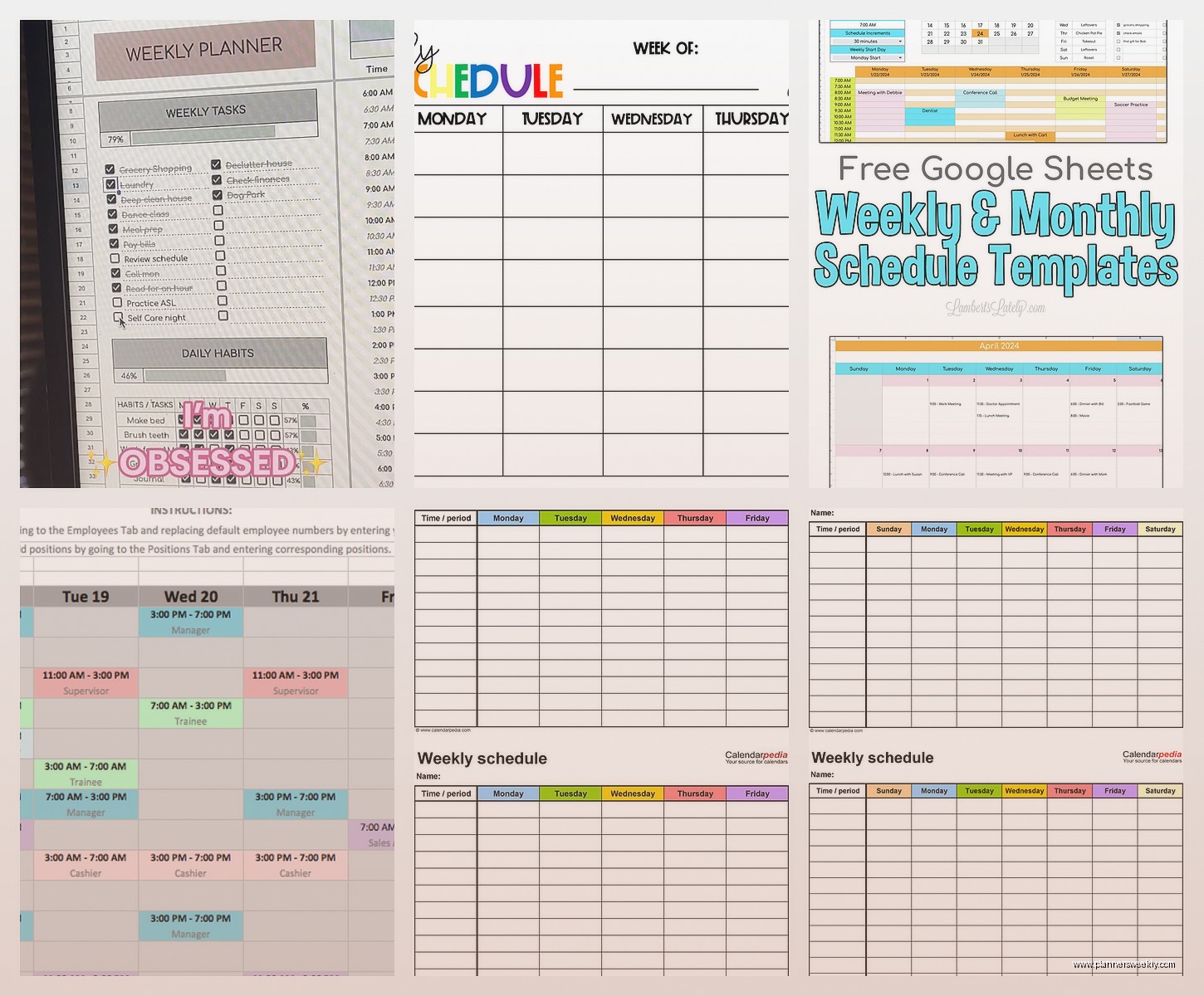
Okay so funny story, I was testing all these Excel templates and realized half my clients don’t even have Excel they just use Google Sheets. So I converted a bunch of these templates and some work fine and some completely break.
The Microsoft basic one converts okay. You just upload it to Google Drive and open with Google Sheets and most of the formatting stays intact. The formulas get a little weird sometimes but nothing that breaks the whole thing.
But honestly if you’re gonna use Google Sheets anyway just search their template gallery for weekly schedule. They have one called “Weekly Planner” that’s specifically designed for Sheets and it works better than converted Excel files.
Why You Might Want Google Sheets Instead
- It’s free and you don’t need to buy Microsoft Office
- Auto-saves constantly so you won’t lose stuff
- You can share it with other people which is useful for team schedules
- Works on your phone without weird formatting issues
I tested the mobile experience because I was sitting in a waiting room last week and needed to update my schedule and the Google Sheets version was way easier to edit on my phone than trying to use Excel mobile.
Template.net Has Way Too Many Options
This is gonna sound weird but Template.net has like 50 different weekly schedule templates and it’s actually overwhelming. I spent 20 minutes just scrolling through options which is ridiculous.
But their “Simple Weekly Schedule Template” is actually good if you want something minimal. No fancy colors or complicated formulas just a basic grid with days and time slots. Sometimes that’s all you need you know?
The download process is slightly annoying because you have to give them your email but I just used my spam email account and it was fine. They send you the file immediately so it’s not like you’re waiting around.
Making Your Own Template From Scratch
Okay so if none of the pre-made ones work for you it’s actually not that hard to make your own. I did this for a client who had really specific needs and it took maybe 30 minutes.
Basic Steps
- Open a blank Excel workbook
- Set up your columns for days of the week
- Add rows for time slots (however granular you want)
- Merge cells at the top for headers
- Add borders so it doesn’t look like a mess
- Use conditional formatting if you want color coding
The trick is to keep it simple at first. Don’t try to add a million features right away because you’ll just confuse yourself. Start with the basic grid and add stuff as you figure out what you actually need.
I was watching The Bear while doing this which probably wasn’t the best idea because I kept getting distracted but also it made the whole process less tedious.
Features That Actually Matter
After testing like a dozen templates here’s what I think actually makes a difference:
Time Slot Flexibility
You gotta be able to adjust the time increments. If you’re stuck with 30-minute blocks but you need 15-minute slots you’re gonna have a bad time. The best templates let you customize this easily.
Color Coding That Makes Sense
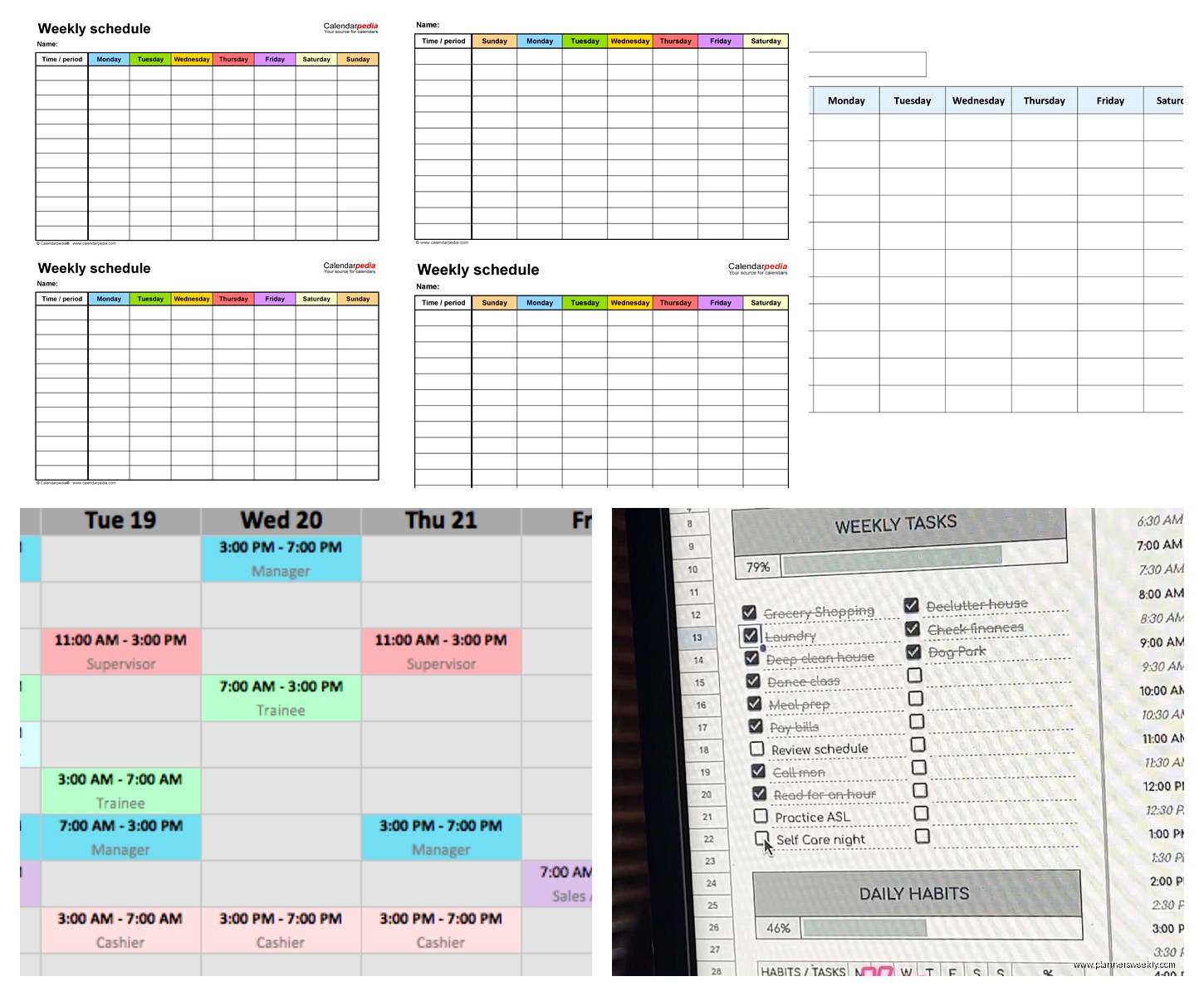
Not just random colors but actual categories. Like work vs personal vs appointments or however you organize your life. The Vertex42 template does this really well with dropdown menus for categories that auto-apply colors.
Print Compatibility
Even if you’re mostly digital being able to print a clean version matters. I have clients who like to print their weekly schedule on Sunday night and stick it on their fridge. If the template prints with weird margins or cuts off half the content it’s useless.
Notes or Task Sections
Somewhere to write quick notes or tasks for each day. Doesn’t have to be fancy just needs to exist. I’ve used templates that look gorgeous but have zero space for notes and they never last more than a week.
Common Problems I Keep Seeing
The formulas break when you try to customize stuff. This happens with templates that are over-engineered with complicated formulas. You change one cell and suddenly half the template stops working.
Color schemes that are way too busy. I tested one template that had like 8 different colors in the default view and it gave me a headache. Less is more with this stuff.
File size gets huge for some reason. Some templates have so much formatting and hidden data that the file ends up being like 5MB which is insane for a weekly schedule. Makes them slow to open and annoying to share.
My Actual Recommendation
If you just need something simple and free go with the Microsoft built-in template. It’s clean it works and you don’t have to download anything sketchy from random websites.
If you want more customization and don’t mind spending 2 minutes downloading something the Vertex42 template is solid. I’ve recommended it to probably 15 clients at this point and nobody’s complained.
If you’re team Google Sheets just use their native template don’t bother converting Excel files. Save yourself the hassle.
Customization Tips That Actually Help
Once you’ve got your template here’s how to make it actually useful for your life:
Set Up Recurring Items First
Block out the stuff that happens every week in the same time slots. Your standing meetings your workout schedule whatever. Get those in there first so you’re building around your fixed commitments.
Use Data Validation for Categories
This sounds technical but it’s not. You can set up dropdown lists for task categories so you’re not manually typing the same things over and over. Makes color coding way faster.
In Excel you go to Data > Data Validation > List and then type your categories separated by commas. Saves so much time.
Freeze the Header Rows
If your schedule is long enough that you’re scrolling freeze the top row with the day names so you always know what day you’re looking at. View > Freeze Panes > Freeze Top Row.
Such a small thing but it makes scrolling through your week way less annoying.
When Templates Don’t Work
Honestly sometimes a template just isn’t the right tool. If you need heavy integration with other apps or want automatic syncing with your calendar or need collaboration features you’re probably better off with actual scheduling software.
I use templates for high-level weekly planning but my actual appointment scheduling is in Calendly because trying to manage client bookings in Excel would make me lose my mind.
Templates are good for visual planning and getting an overview of your week. They’re less good for detailed time tracking or complex project management. Know what you’re trying to solve before you spend an hour customizing a template.
Saving and Organizing Your Templates
Make a master template file that’s blank and save it somewhere you won’t lose it. Then each week save a copy with the date in the filename like “Week-of-March-10-2024” or whatever system makes sense to you.
I keep mine in a folder called Weekly Schedules in my OneDrive and it auto-syncs everywhere which is great until OneDrive decides to have a bad day but that’s a different problem.
Oh and another thing, if you’re using the same template every week set up a keyboard shortcut or quick access link so you’re not hunting through folders every Sunday night. Makes it way more likely you’ll actually use it consistently.
The best template is the one you’ll actually use which sounds obvious but I’ve seen so many people download these elaborate complicated templates that they use once and then abandon. Start simple and add complexity only if you need it.
