
Digital Productivity, Online planners, Planners
Online Schedule Maker Guide: Free Tools & Tutorials
Apr
Okay so I just spent the last two weeks testing literally every free schedule maker I could find because three of my clients asked me about this in the same week and I was like, fine, universe, I get it.
Google Calendar Is Still The One Everyone Sleeps On
I know, I know, you’re probably thinking “Emma that’s not even a schedule maker” but hear me out. I’ve been using it to build weekly schedules for my productivity coaching sessions and honestly it does 90% of what those fancy dedicated tools do. You can color-code everything, set recurring events, and share specific calendars with other people without giving them access to your entire life.
The appointment slots feature is actually wild – you set your available times and people can just book themselves in. I use this for client consultations and it’s saved me probably hundreds of back-and-forth emails. You find it under “Create” and then there’s this option for “Appointment schedule” that most people don’t even know exists.
What I love is that you can layer multiple calendars on top of each other. I have one for work blocks, one for personal stuff, one for my dog’s vet appointments (don’t judge me, Bailey has a complicated medication schedule), and they all show up in different colors so I can see where time conflicts are gonna happen before they actually happen.
The Annoying Parts Nobody Talks About
The mobile app is kinda clunky for creating detailed events. Like if you’re trying to add a bunch of information or attachments, just wait until you’re at a computer. Also the printing options are terrible – I tried to print a weekly schedule for a client who doesn’t use digital tools and it looked like something from 1997.
Canva Has This Whole Schedule Maker Thing Now
Wait I forgot to mention – if you need something that looks actually good, like Instagram-worthy or professional enough to send to clients, Canva added schedule templates sometime last year and they’re honestly pretty solid. I was watching The Bear (so good btw) and scrolling through Canva during commercial breaks and just stumbled on these.
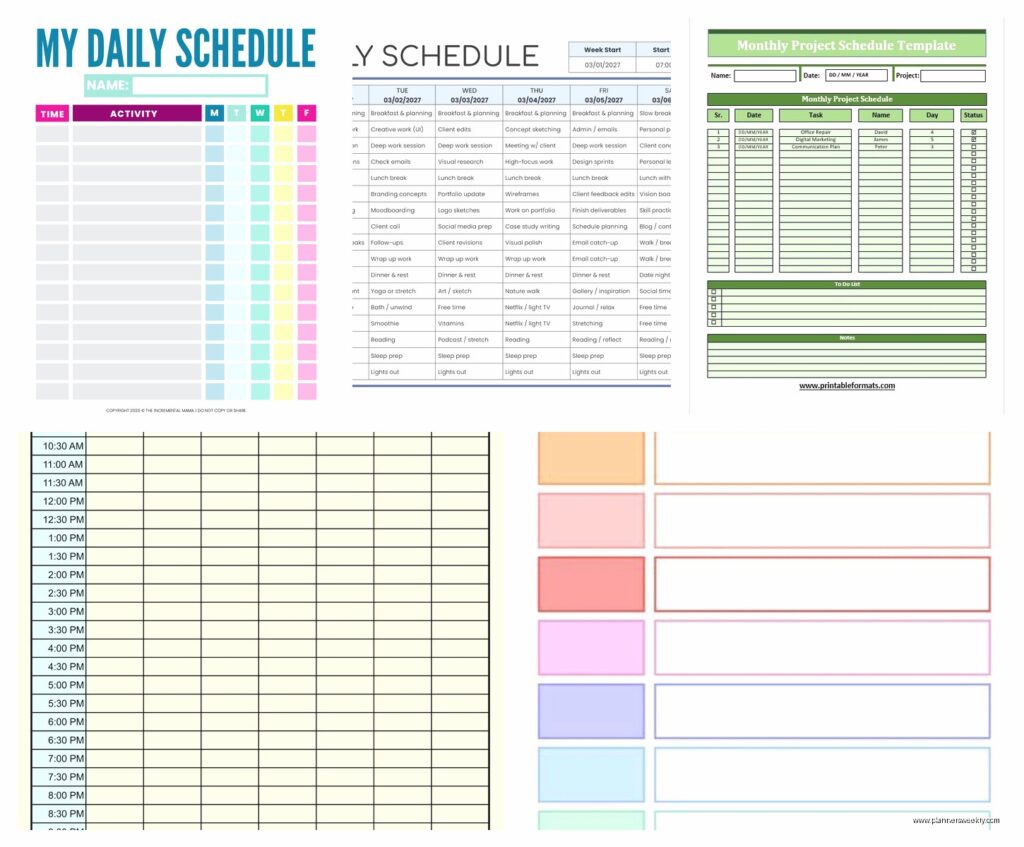
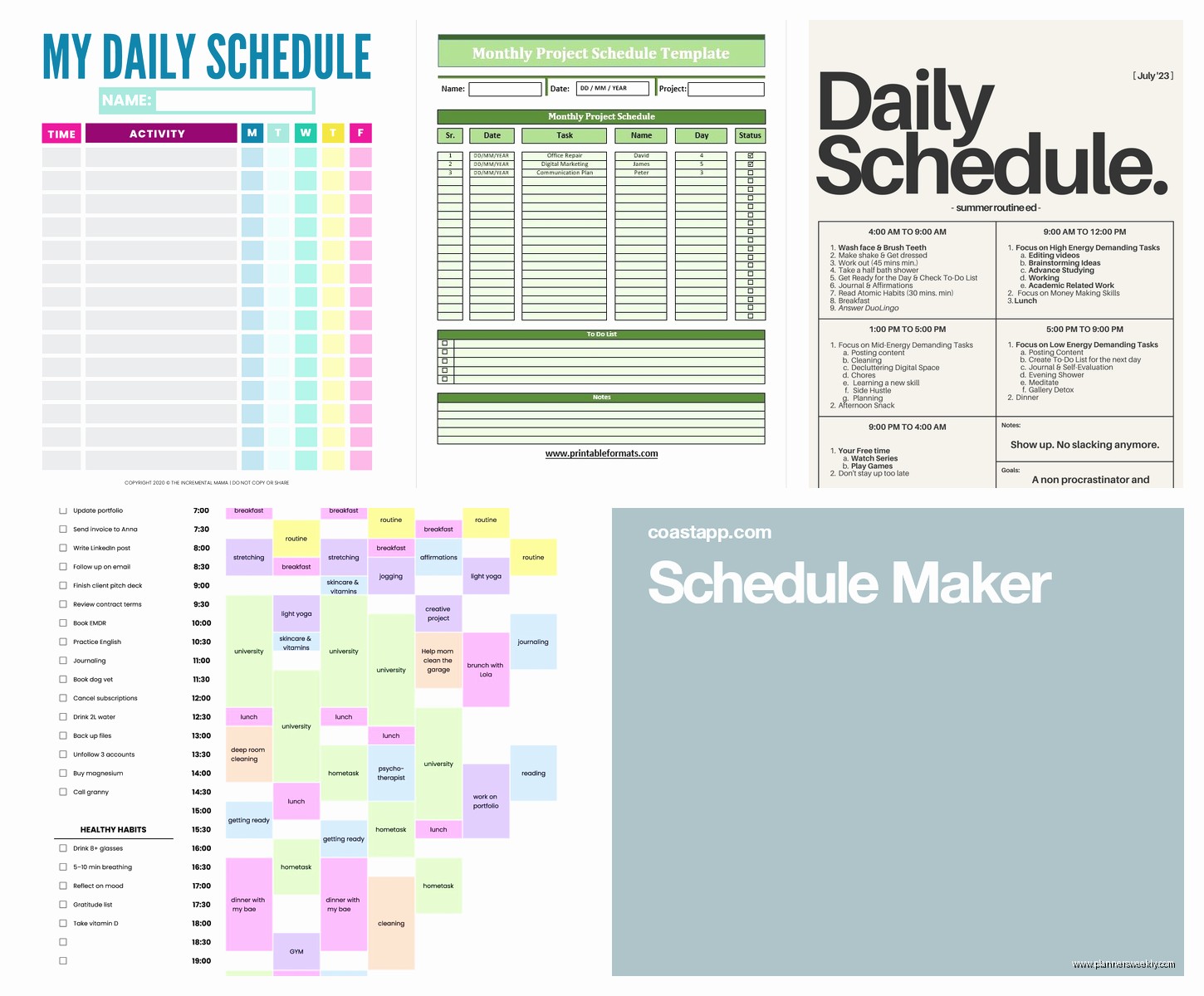
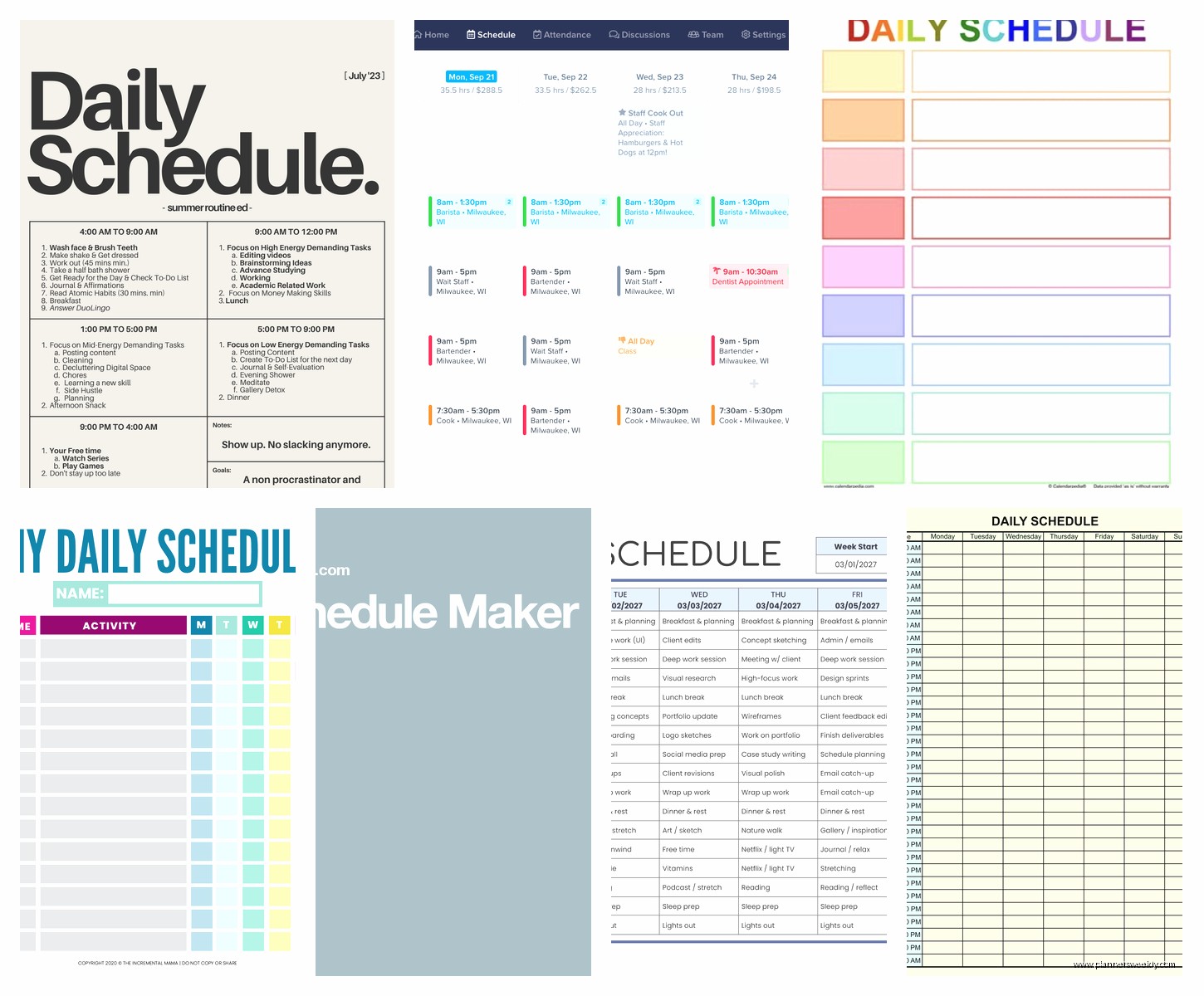
They have daily planners, weekly schedules, monthly calendars, and you can customize literally everything. The free version gives you access to thousands of templates. I made a content calendar for my blog in like 20 minutes that would’ve taken me hours in Excel.
You can add your own photos, change all the colors to match your brand or whatever, and the drag-and-drop interface is super intuitive. My 68-year-old mom figured it out in one phone call, which is saying something because she still calls me to ask how to attach PDFs to emails.
Where Canva Gets Weird
It’s not actually a functional calendar though – it’s more like a visual schedule maker that you then export as an image or PDF. So you’re not getting reminders or syncing across devices. It’s for people who need something to look at or print out, not for digital scheduling with notifications and stuff.
Calendly Changed My Entire Booking Situation
Okay so funny story – I resisted Calendly for like two years because I thought it seemed impersonal to send people a booking link. Then I tried it for one week and immediately felt like an idiot for waiting so long.
The free version lets you have one event type, which sounds limiting but is actually fine for most people. I use mine for “30-minute consultation calls” and just have that one link in my email signature and Instagram bio. People click it, see my available times, book themselves in, and both of us get automatic confirmations and reminders.
It connects to your Google Calendar, Outlook, or iCloud calendar so it automatically blocks off times when you’re already busy. No more double-bookings. No more “what times work for you?” “how about Tuesday?” “oh wait I have something Tuesday” email chains that take three days.
You can set buffer times between meetings – I have mine set for 15 minutes because I need time to like, use the bathroom and grab water and decompress before the next person. You can also set how far in advance people can book (I don’t let people book same-day because I’m not that organized) and how far into the future (I cap mine at 30 days).
The Free Version Limitations
You only get one event type on the free plan, which means if you want separate booking pages for different types of meetings, you gotta upgrade. Also the confirmation emails have Calendly branding on them. And you can’t do round-robin scheduling or collect payments, but honestly most people don’t need that stuff anyway.
When You Need Something More Visual – Notion
This is gonna sound weird but I’ve been building all my editorial calendars in Notion lately and it’s become my favorite way to schedule content and projects. It’s technically a note-taking and database tool but the calendar view is actually really powerful.
You create a database of your tasks or events or whatever, and then you can view that same information as a calendar, a list, a kanban board, or a table. So if you’re scheduling blog posts, you can see them on a calendar view to check your publishing frequency, then switch to list view to see everything sorted by status.
The free personal plan is generous – you get unlimited pages and blocks, which is basically everything you need. I have templates set up for different types of schedule entries, so when I add a new blog post to my editorial calendar, it automatically includes fields for the topic, target keywords, status, and notes.
My client canceled last week so I spent like an hour just building out this elaborate content calendar system with connected databases and it was honestly therapeutic. You can link different databases together, so my blog post calendar connects to my social media promotion calendar and my newsletter schedule.
The Learning Curve Is Real
Notion is powerful but it’s also kinda overwhelming at first. I’d recommend starting with one of their templates – they have pre-built schedule and calendar templates you can just duplicate and customize. Don’t try to build something complex from scratch right away or you’ll get frustrated and give up.
For Teams – Doodle Still Works Great
If you need to coordinate schedules with multiple people, Doodle is still the easiest thing I’ve found. You propose a bunch of possible times, send people the link, they mark which times work for them, and you can instantly see which option works for everyone.
The free version lets you create unlimited polls which is the main thing you need. I use this constantly for scheduling meetings with multiple clients or coordinating workshop times. Way better than trying to compare everyone’s availability manually.
They added this “booking page” feature too where you can set your general availability and people can book time with you, similar to Calendly. The free version is more limited but it works fine for basic scheduling.
Time Block Planning – Structured.app
Wait I forgot to mention this one – if you’re specifically into time blocking (which I am, obviously, productivity coach and all), Structured is this beautiful iOS app that’s all about daily scheduling. The free version is actually really functional.
You build your day as a visual timeline with color-coded blocks for different activities. It shows you exactly what you should be doing at any given moment. I use it on days when I have a million small tasks and need to stay on track.
The interface is gorgeous – like, actually makes you want to plan your day, which sounds dumb but matters more than you’d think. You can set time estimates for tasks and it’ll adjust your schedule automatically if something runs over. There’s also this focus timer built in.
Downside is it’s iOS only, which is annoying if you’re on Android. And the free version has some limitations on recurring tasks and stuff, but for basic daily time blocking it’s perfect.
Excel or Google Sheets When You Want Full Control
Okay this sounds boring but sometimes you just need a spreadsheet. I have clients who’ve built incredibly detailed schedules in Google Sheets with conditional formatting, drop-down menus, and formulas that calculate their available hours automatically.
The advantage is total customization – you can make it look and work exactly how you want. I have a weekly schedule template I made that has different tabs for different types of weeks (heavy client weeks, content creation weeks, admin weeks) and I just duplicate whichever one I need.
Google Sheets also has these schedule templates if you don’t wanna start from scratch. Go to the template gallery and there’s a whole section for schedules and calendars. Some of them are actually pretty sophisticated with built-in formulas and everything.
Making Spreadsheet Schedules Not Terrible
Use conditional formatting to automatically color-code different types of activities. Set up data validation with drop-down lists so you’re selecting from preset options instead of typing everything manually. Freeze the top row and left column so your headers stay visible when you scroll. These small things make spreadsheet schedules way more usable.
Trello For Project-Based Scheduling
If your schedule is more project-focused than time-focused, Trello’s calendar power-up is actually really useful. You add due dates to your cards and then view everything on a calendar layout.
I use this for my blog content pipeline – each card is a blog post moving through stages (idea, outline, draft, edit, publish) and the calendar view shows me when everything’s supposed to be done. It’s free, it syncs across devices, and the visual kanban board thing really works for some people’s brains.
The calendar power-up used to be paid but they made it free last year which is great. You can see all your deadlines at once and drag cards to different dates if you need to reschedule stuff.
What I Actually Use Day-To-Day
Real talk – I use Google Calendar as my main scheduling hub because it syncs with everything and sends me notifications. Then I have Calendly for client bookings because I’m not playing email tag anymore. And I use Notion for my editorial calendar and project planning because I like having all my notes and schedules in one place.
For daily time blocking I switch between Structured on my phone and just… writing in my physical planner, honestly. Sometimes paper is still the best interface. My bullet journal has a weekly spread where I block out my time and it lives on my desk where I can see it without opening an app.
Oh and another thing – whatever tool you pick, the key is actually using it consistently. I’ve watched so many people spend hours setting up elaborate scheduling systems and then abandon them after a week. Start simple, make it a habit, then add complexity if you need it. Don’t build some perfect system that’s so complicated you avoid looking at it.
