
Digital Productivity, Online planners, Planners
Online Timetable Maker: Best Free Tools & Tutorials
Apr
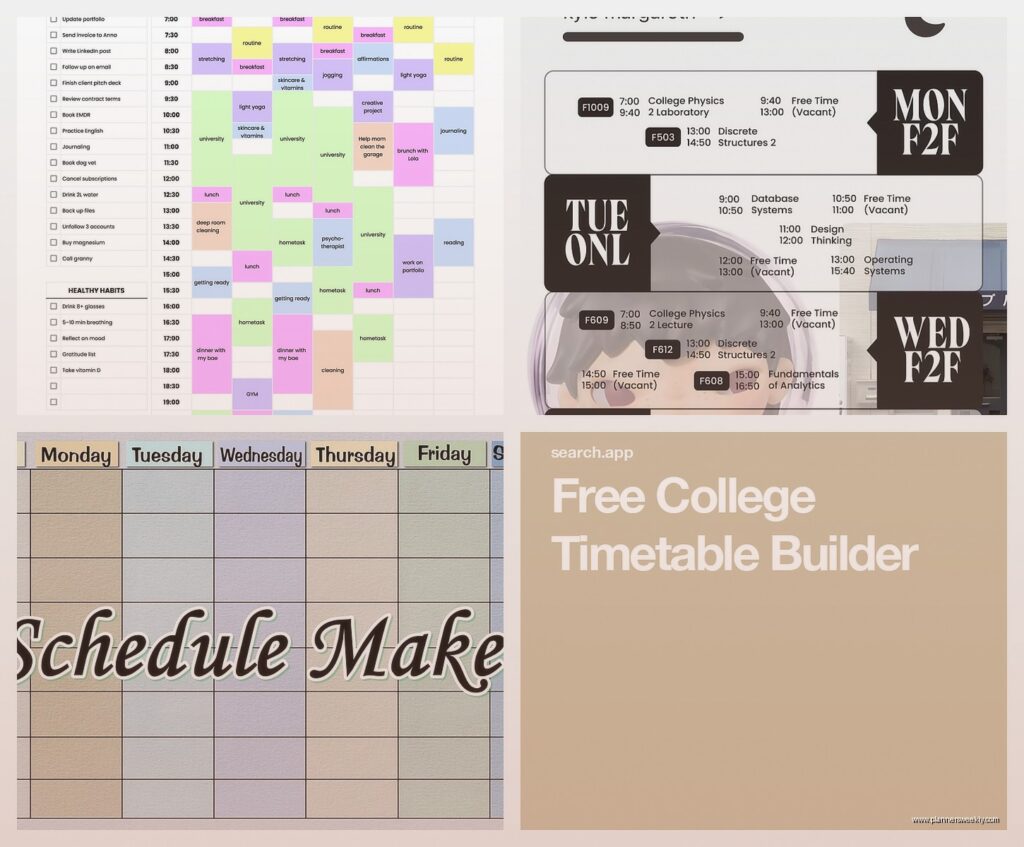
Okay so I just spent the entire weekend testing like eight different online timetable makers because one of my clients asked me which one to use for their team schedule and honestly I fell down this rabbit hole hard. My dog kept giving me judgy looks because I was muttering about color coding at 2am but whatever, here’s what actually works.
Canva’s Timetable Templates Are Secretly Amazing
I know, I know, Canva isn’t technically a dedicated timetable maker but hear me out. They’ve got probably 50+ free timetable templates and the drag-and-drop thing is so intuitive. I tested their weekly planner templates first and you can customize literally everything without wanting to throw your laptop.
The best part is you don’t need to understand complex scheduling software. You just click on a time slot, type your thing, change the color if you’re into that. Takes maybe 10 minutes to make something that looks professional. I made a content calendar for my blog in like 15 minutes while watching that new Netflix show about chefs.
The annoying bits though – you can’t set recurring events automatically, so if you have the same meeting every Tuesday you’re gonna manually copy-paste those blocks. Also the free version has limited downloads but honestly for most people it’s fine. You get PNG downloads which work for printing or sharing digitally.
How to Actually Use It
Search “timetable” or “schedule” in their template section. Pick one that has the right time blocks for your needs. I like the ones with hourly breakdowns from 8am to 6pm because that matches most work schedules. Then just click each cell and type your activities. Change colors by selecting the block and choosing from their color palette. Pro tip – stick to 3-4 colors max or it looks like a kindergarten art project.
Google Sheets Is Weirdly Perfect For This
Wait I forgot to mention Google Sheets because it sounds boring but it’s actually one of my most-used tools now. You can create a timetable from scratch or use their template gallery. The advantage here is the collaboration features – multiple people can edit in real time which is huge if you’re coordinating with a team or family.
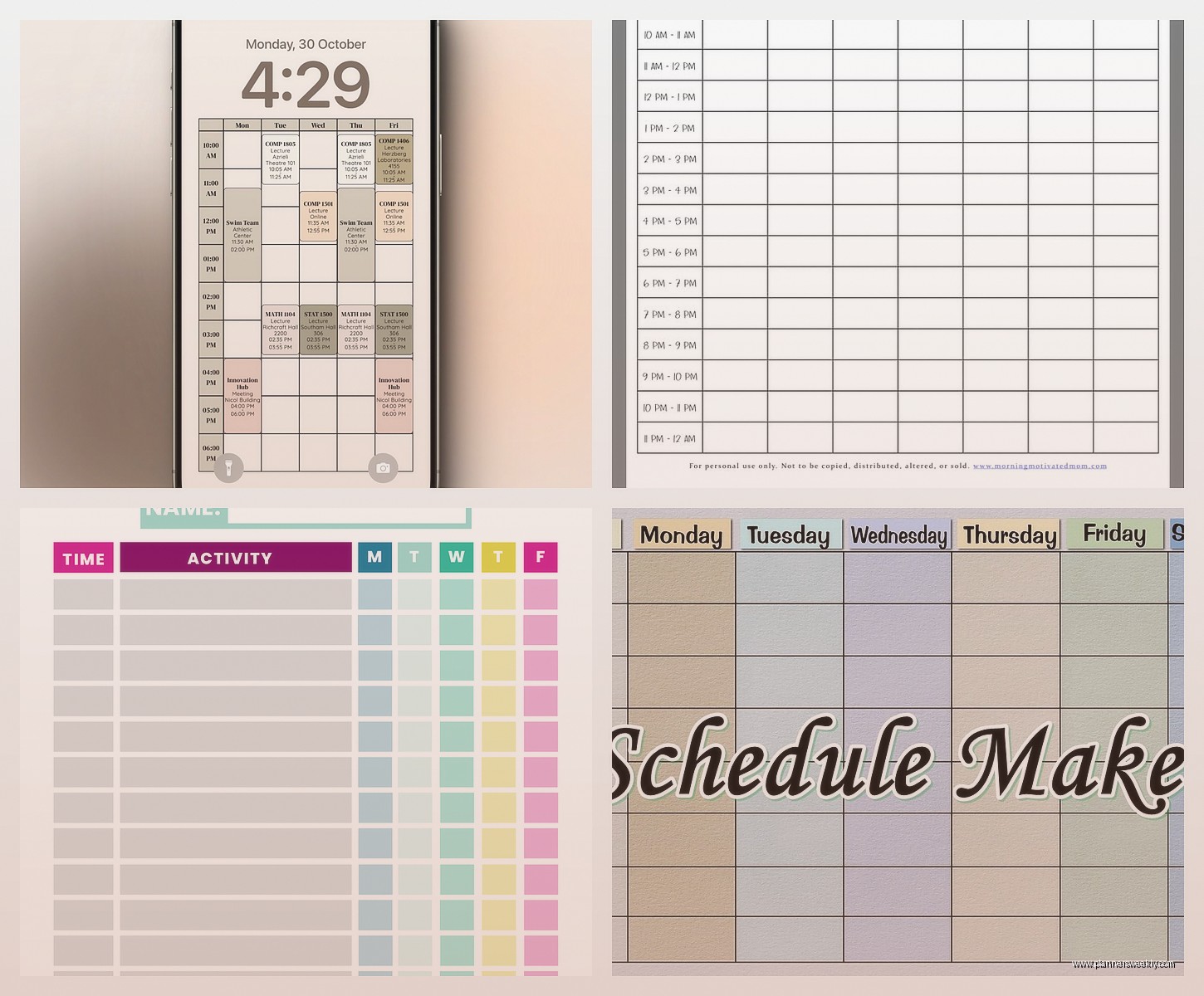
I made a template for my coaching clients and now I just duplicate it for each new person. Takes literally 30 seconds to set up a new one. You can use conditional formatting to automatically color-code based on keywords. Like if a cell contains “meeting” it turns blue, “focus work” turns green, whatever system makes sense to you.
The formula options are insane too. You can calculate total hours per activity, set up automatic time tracking, even link cells to pull data from other sheets. I have one client who tracks billable hours this way and it auto-calculates their weekly totals.
Setting Up Your Sheet Template
Start with days across the top row and time slots down the left column. Merge cells if you need longer time blocks. Use the paint bucket tool to add background colors. Then here’s the thing most people miss – freeze the top row and first column so when you scroll everything stays visible. Game changer.
Add data validation to create dropdown menus for recurring activities. This saves so much typing. I have dropdowns for “Client Call,” “Admin,” “Content Creation,” etc. Just select from the list instead of typing every time.
Notion’s Database View Is Next Level
Okay so funny story, I resisted Notion for like two years because everyone was so cultish about it but then I actually tried their calendar database view for timetabling and yeah I get it now. You can switch between calendar view, table view, timeline view – all showing the same data.
The learning curve is steeper than the other options but once you understand databases it’s incredibly powerful. You can tag entries with categories, add properties like duration or priority, filter views to show only certain types of activities. I use it for my editorial calendar and can flip between monthly overview and daily detailed view instantly.
The free personal plan gives you unlimited blocks now which is all most people need. The templates gallery has timetable options to start from but honestly I’d recommend building your own once you understand the basics because then it matches exactly how your brain works.
Basic Setup Process
Create a new database and add properties for whatever matters to you – time, category, duration, notes, whatever. Then switch to calendar view. Add entries by clicking on dates and filling in the properties. Use filters to show only work stuff or only personal stuff. The linked databases feature lets you show the same schedule in multiple places with different filters which sounds confusing but is actually super useful.
Venngage Has Specific Timetable Tools
This one’s more design-focused but if you need something that looks really polished for presentations or sharing with clients it’s worth checking out. They have infographic-style timetables that go beyond basic grids. My client canceled last Tuesday so I spent an hour comparing their templates to Canva’s and Venngage definitely wins for visual impact.
The free plan lets you create unlimited designs but you get their watermark on downloads. For most internal use cases that’s totally fine. The editor is similar to Canva – drag and drop, click to edit text, change colors from a palette. They have smart features like automatically adjusting text size to fit boxes which is surprisingly helpful when you have long activity names.
Where it falls short is the collaboration features. You can’t have multiple people editing like you can in Google Sheets or Notion. It’s more for creating a final polished version to share as an image rather than a working document people interact with.
TimeBloc If You Want Something Purpose-Built
Wait I should mention TimeBloc because it’s actually designed specifically for time blocking and timetables instead of being a general design tool. The interface is super clean – you’re basically painting time blocks onto a calendar grid. Click and drag to create blocks, resize them, move them around. It’s satisfying in like a weird organizational way.
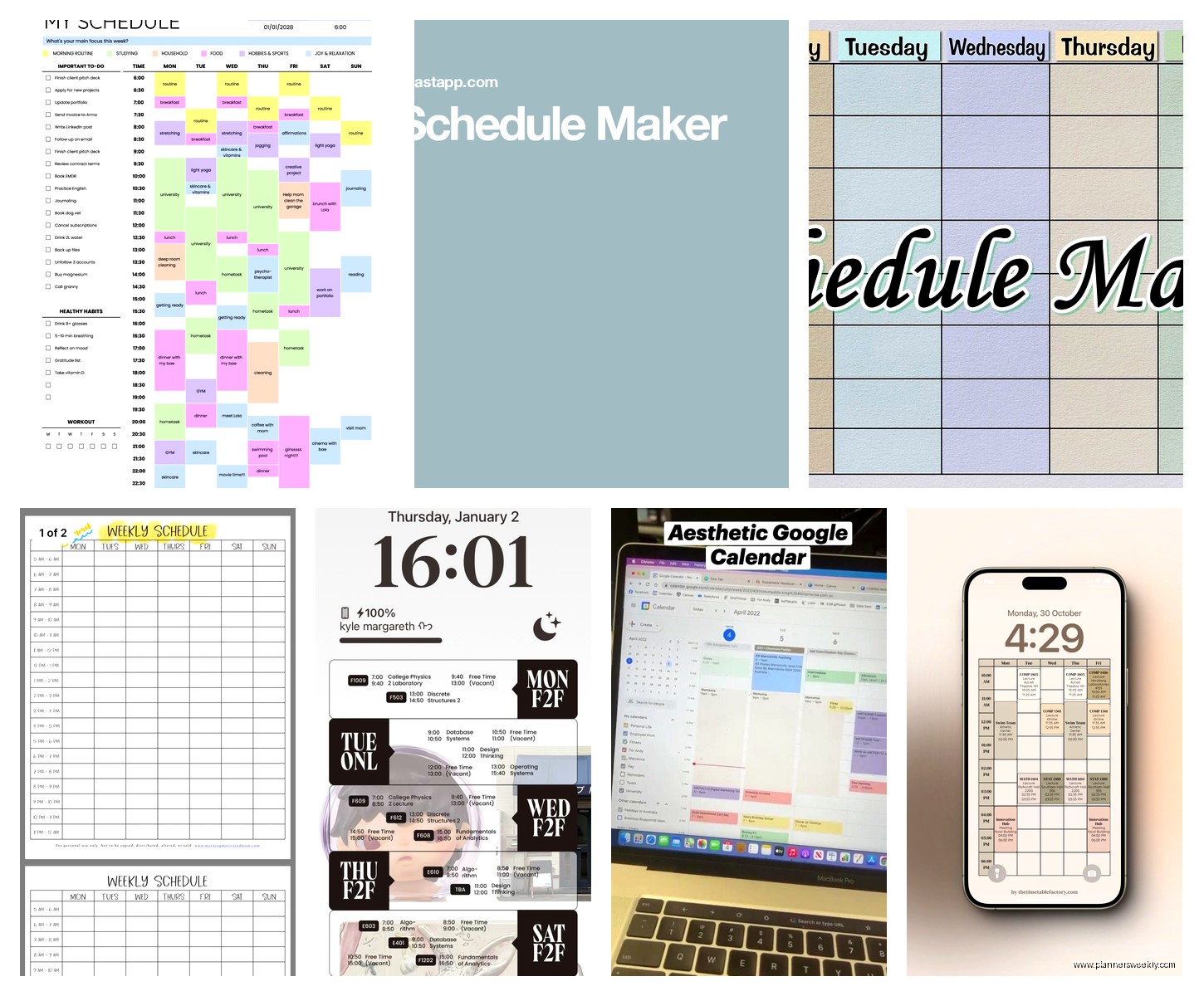
The free version is pretty limited though – you get one calendar and basic features. But for personal use or testing if time blocking works for you it’s enough. You can color code activities, set recurring blocks, and it has a mobile app that syncs which most of these other options don’t really have.
The thing that bugs me is you can’t export your timetable as an image easily. You have to screenshot it which feels primitive. Also the recurring event setup is kinda clunky compared to like Google Calendar. But for the actual visual planning part it’s really intuitive.
Good Old Spreadsheet Templates
Oh and another thing – don’t overlook just downloading a pre-made Excel or Google Sheets template. Template.net has tons of free options, Office templates has official Microsoft ones, even Etsy has free downloadable timetable templates if you search around.
I grabbed this weekly hourly planner template from Template.net last month and it’s become my go-to for quick scheduling. Already formatted with nice colors, professional looking, you just plug in your activities. No learning curve, no account needed, just download and use.
The downside is they’re static – you’re not gonna get fancy features or collaboration. But sometimes you just need a simple timetable for the week and don’t wanna mess with software. Print it out, fill it in with a pen, stick it on your wall. Sometimes analog wins.
What Actually Matters When Choosing
This is gonna sound obvious but think about how you’ll actually use it before picking a tool. If you need to share and collaborate, Google Sheets or Notion make way more sense than Canva. If you want something beautiful for a presentation, Canva or Venngage. If you’re time blocking for personal productivity, TimeBloc or even just a simple spreadsheet.
I use different tools for different purposes honestly. My content calendar lives in Notion because I need to track multiple properties and switch between views. My weekly schedule is in Google Sheets because my VA needs to access it. Quick project timelines I make in Canva because they need to look good for client presentations.
Also consider if you need recurring events. Most design tools make you manually recreate weekly repeating items which gets old fast. Calendar-based tools handle this better but might not look as pretty. Trade-offs everywhere.
My Actual Recommendation
If you’re just starting out and need something free that works right now, go with Google Sheets. Use a template from their gallery or find one online, customize it for your needs, and you’re done in 20 minutes. It’s free forever, you can access it anywhere, multiple people can edit, and there’s basically no learning curve.
If you want something more sophisticated and don’t mind spending time learning it, Notion is worth the investment. The flexibility is unmatched once you get past the initial confusion. I spent probably 5 hours total figuring it out but now I use it daily and it’s replaced like four other tools.
For quick one-off timetables that need to look professional, Canva wins. The templates are great, the editor is intuitive, and even the free version gives you enough. I keep coming back to it for client-facing stuff.
Random Tips That Actually Help
Color code by category not by day – way more useful when scanning your schedule quickly. Use the same color for all meetings, another for focus work, another for admin stuff. Your brain picks up patterns faster this way.
Block out buffer time between activities. I learned this the hard way after scheduling back-to-back calls and having zero time to pee or grab coffee. Even 15-minute gaps make a huge difference.
Don’t make your time blocks too small. Half-hour minimum or you end up with this overwhelming grid of tiny tasks. Unless you’re doing like a minute-by-minute schedule which honestly who has time for that level of detail.
Review and adjust weekly. Your timetable isn’t set in stone. I update mine every Sunday evening based on what actually worked the previous week. Some things always take longer than planned, some meetings get moved, whatever. Rolling with it instead of sticking rigidly to a plan reduces so much stress.
This is gonna sound weird but don’t fill every slot. Leave white space for unexpected stuff that comes up because it always does. I aim for about 60-70% scheduled and leave the rest flexible. Otherwise you’re constantly behind and feeling frazzled.
Anyway those are the tools I’ve actually used and would recommend depending on what you need. The perfect timetable maker doesn’t really exist because everyone’s needs are different but these options cover most use cases pretty well.
