
Digital Productivity, Online planners, Planners
Weekly Calendar Template: Free Printable & Digital Designs
Apr
Okay so I’ve been testing like every weekly calendar template I can get my hands on for the past month because honestly my whole planner system fell apart and I needed to start fresh. Here’s what actually works.
The Google Sheets Templates Everyone Ignores But Shouldn’t
So Google Sheets has this built-in template gallery that nobody talks about and I stumbled on it when my coffee spilled on my paper planner last Tuesday. You go to Google Sheets, click the template gallery at the top, and there’s literally a weekly schedule template right there. The thing is it’s super basic but that’s actually good? Like it loads fast, you can color code stuff without getting overwhelmed, and here’s the part that made me actually stick with it – you can duplicate the tab for each week instead of creating a whole new file.
I’ve been using it for client sessions and it syncs across my phone automatically which sounds obvious but when you’re running between meetings it’s the difference between actually checking your schedule and just winging it. You can share it with other people too which I did with my accountability partner and now we both update it when we’re blocking focus time.
The Customization Thing
You gotta add your own time blocks though because the default is just days across the top. What I did was freeze the first column, put times down the left side in 30-minute increments from 6am to 9pm, and then just merged cells for longer tasks. Takes like ten minutes to set up initially but then you just copy that tab forever.
Canva’s Free Templates Are Actually Good Now
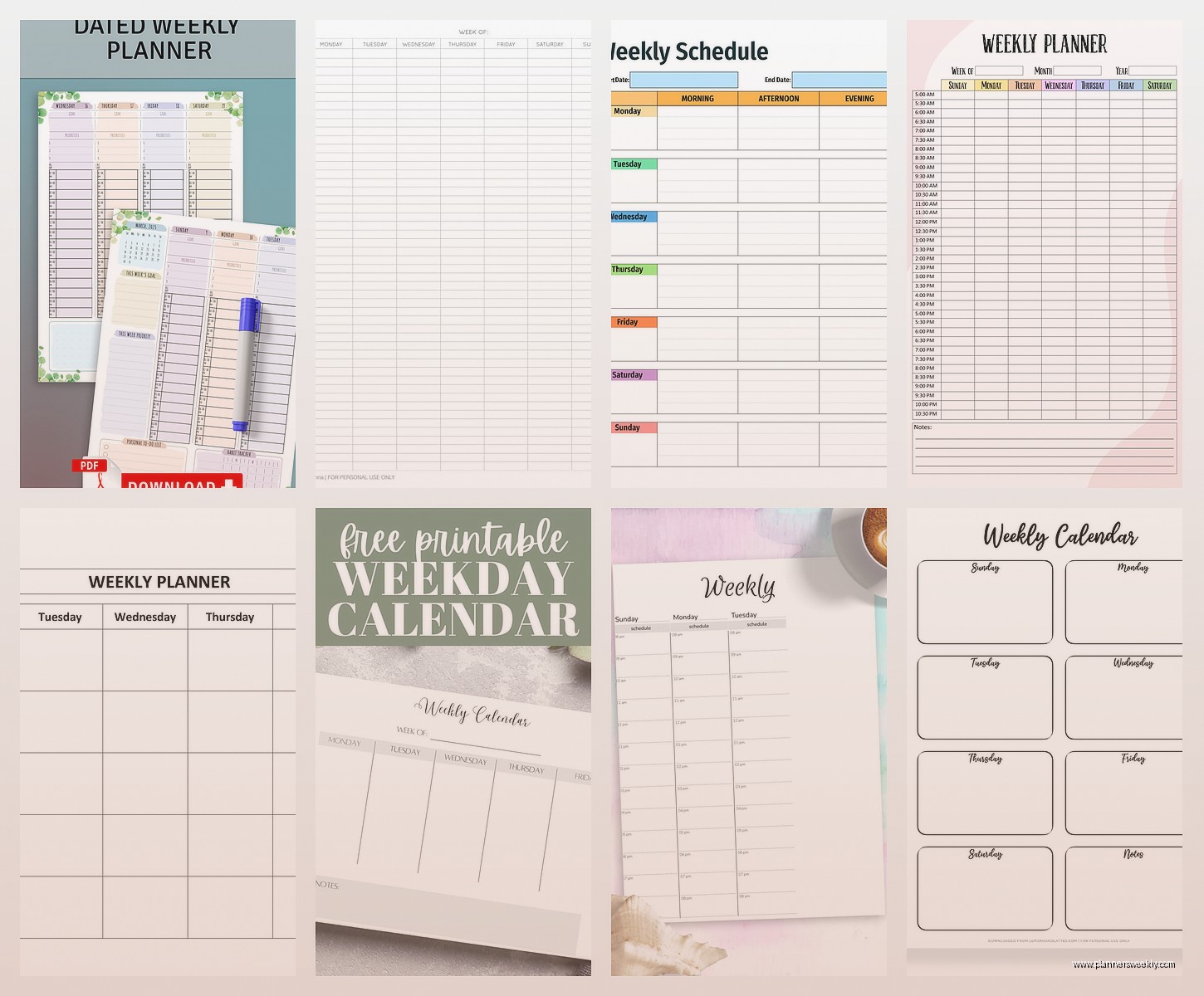
Wait I forgot to mention Canva because I literally redesigned my whole template there last weekend when I should’ve been doing laundry. They have probably 200+ free weekly calendar templates and the search function actually works if you filter by free only. The ones I keep coming back to are the minimalist ones because the decorative ones are pretty but then you can’t read your own handwriting on them when you print them out.
Here’s my process: search “weekly planner minimalist,” filter to free, pick one with enough white space that you can actually write in it. The landscape ones print better on regular printer paper than the portrait ones which I learned after wasting like 15 sheets of paper. Oh and another thing – download as PDF not PNG if you’re printing because the quality stays crisp.
The Digital Version Thing
If you’re using it digitally on an iPad or tablet, Canva lets you add clickable elements which is kinda cool. I added little checkbox circles to mine and when I’m using it in the app I can just tap them. It’s not as smooth as a dedicated planner app but it’s free and you can change the design whenever you want which I do way too often if I’m being honest.
Notion Templates That Don’t Require a PhD to Use
Okay so funny story, I resisted Notion for like two years because everyone made it seem so complicated but the weekly templates are actually straightforward. There’s a template button in Notion – you click it, search “weekly agenda” and there’s ones that are just tables. That’s it. No databases, no linked relations, just a table with days of the week.
The one I use has a column for each day and then rows for morning, afternoon, evening. Super simple but it works. You can toggle things as done which feels satisfying, and everything stays in one place instead of scattered across files. My cat walked across my keyboard while I was setting this up and somehow created a new page but I just deleted it and kept going.
The Toggle List Feature
This is gonna sound weird but the toggle lists in Notion changed how I plan my weeks. You can put your main task as the toggle header and then all the subtasks hidden underneath. So like “Client Project” as the toggle and then “draft outline, review feedback, send invoice” nested inside. When you’re looking at your week overview it’s not overwhelming but the details are right there when you click.
Printable Templates from Actual Paper Planner People
I tested a bunch from different stationery sites and blogs and here’s what’s actually worth downloading. Passion Planner has free PDF downloads of their weekly layout – it’s the Sunday start vertical layout with lined and blank versions. The lined one is better if you write small, blank if you’re more visual or like to doodle your tasks.
The Happy Planner has some free printables too but you gotta sign up for their email list which is annoying but whatever, I use a separate email for that stuff anyway. Their hourly layout goes from 6am to 9pm in 30-minute blocks and there’s a notes section at the bottom. I printed like 20 copies of this and put them in a binder and that was my system for March.
Paper Size Actually Matters
Most free printables are formatted for A4 or US Letter and they’re not always interchangeable. I’m in the US so I print on Letter size but if you’re printing A4 templates on Letter paper you get weird margins. Check before you print a whole batch. Also print one test page first because some templates have margins that get cut off depending on your printer settings.
The Excel Templates Your Work Probably Already Has
Microsoft has a template library that’s actually decent if you have Excel. File, New, search “weekly calendar” and there’s ones with formulas already built in. The one I use for work stuff auto-fills the dates when you put in the start date of your week which saves time if you’re printing a new one every week.
There’s also ones with time tracking built in which is useful if you bill hourly or just wanna see where your time actually goes. I tested this for two weeks tracking everything and learned I spend way too much time on email but that’s a whole other thing.
Apps That Have Free Weekly Views Worth Using
Okay so technically these aren’t templates but they function the same way. Google Calendar’s week view on mobile is actually good now – they updated it sometime last year. You can color code by category, it shows your tasks from Google Tasks in the same view, and it’s already synced with your email calendar.
Fantastical has a free version that’s limited but the week view is clean and you can see multiple calendars at once. I use this when I need to see both my work and personal calendars side by side. The premium version isn’t worth it unless you’re doing complex scheduling stuff in my opinion.
Any.do’s Weekly Planning Feature
Wait I forgot to mention Any.do because I was watching that baking show while testing this and got distracted. Their free version has a “plan my day” feature that you can use for weekly planning too. It’s more task-focused than time-blocked which works better for some people. You can set recurring tasks which is good for stuff that happens every week at the same time.
The Hybrid System I Actually Use Now
So after testing everything I ended up with a combination because apparently I can’t just pick one thing. I use Google Sheets for the master weekly template with all my recurring commitments already filled in – coaching sessions, content deadlines, that kind of stuff. Then I print a blank hourly template from Passion Planner for daily detail work because writing things down helps me remember them better.
The digital version stays updated with changes and the paper version is what I look at during the actual day. It’s redundant but it works for my brain. Some weeks I’m all digital if I’m traveling, some weeks I’m mostly paper if I’m home and focused on deep work.
What Actually Makes a Weekly Template Usable
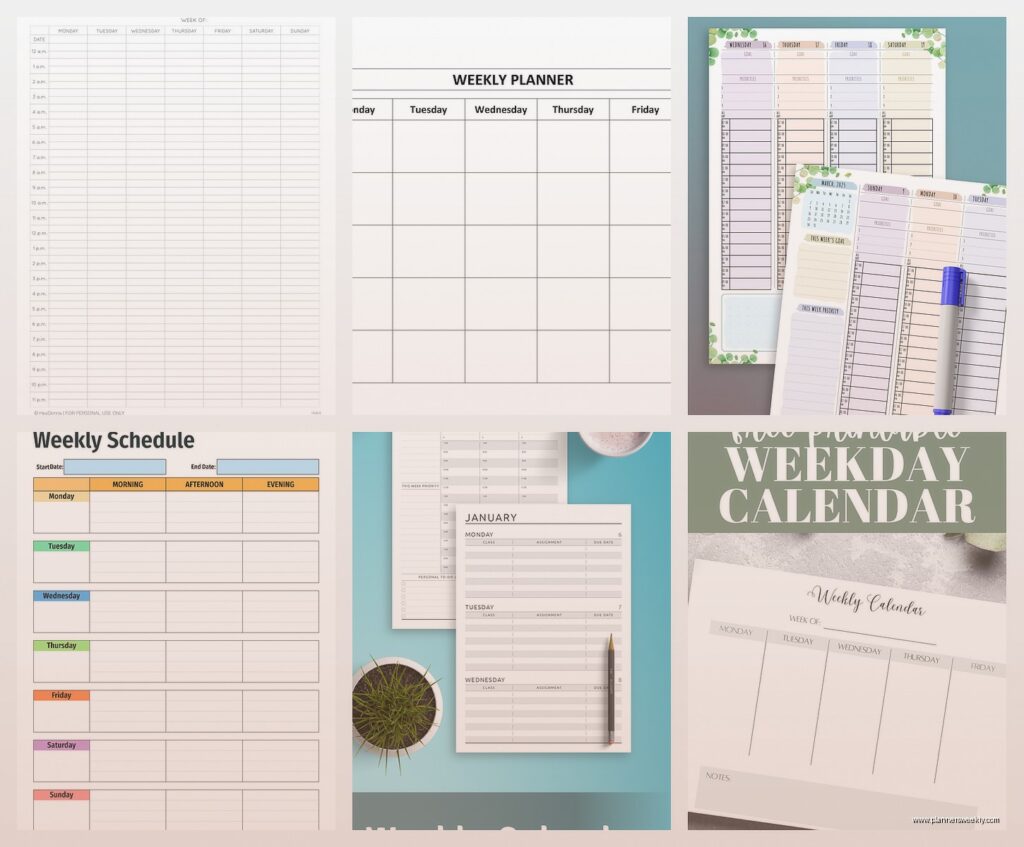
After testing like 40+ different templates here’s what matters: you need enough space to actually write in it, the time blocks should match how you actually work, and it shouldn’t be so pretty that you’re afraid to mess it up. Those heavily designed templates with watercolor flowers and fancy fonts? They look great on Pinterest but I never actually used them.
The ones I keep coming back to have clear sections for each day, some kind of priority marking system even if it’s just a star or checkbox, and space for notes that aren’t tied to specific times. Oh and another thing – if you’re printing them, make sure there’s enough margin that your printer doesn’t cut stuff off. I learned this the hard way.
Time Blocking vs Task Listing
Some templates are set up for time blocking with hourly slots, others are just task lists by day. I need both honestly. Time blocking for meetings and appointments that are actually at specific times, task listing for everything else that just needs to get done sometime that day. The templates that try to do both in one view usually feel cramped.
What I do now is use a time-blocked template but only fill in the actual timed stuff, then use the margins or a separate section for the flexible task list. Sounds complicated but it’s just writing tasks in two different spots on the same page.
Free Resources That Are Actually Updated Regularly
Template.net has a rotating selection of free weekly calendars but you gotta create an account. They add new designs monthly and you can download as Word, Excel, or PDF. The quality varies but there’s usually at least a few good minimal ones.
Vertex42 has Excel and Google Sheets templates that are super functional if not super pretty. Their weekly schedule template has different versions for different needs – student, work, family, etc. The formulas actually work which isn’t always the case with free spreadsheet templates.
The Etsy Free Section
This is gonna sound weird but search Etsy for “free weekly planner printable” and filter by price to free only. Some sellers offer free versions of their paid planners as samples and they’re usually high quality. You can see their design style before buying the full set if you end up wanting more pages.
I found a really good hourly layout this way that had both AM and PM sections on the same page which is perfect for people who work weird hours or split shifts. The creator also had a free habit tracker that matched the design so I grabbed that too.
Setting Up Your Template for Actual Use
Okay so once you pick a template you gotta actually set it up for how you work. If it’s digital, add your recurring stuff first – that meeting that happens every Tuesday, the deadline that hits every Friday, whatever. This becomes your base template that you copy each week.
If you’re printing, print like 4-6 weeks at once so you’re not scrambling every Sunday night. I hole punch mine and put them in a cheap binder with dividers for past weeks, current week, and future weeks. Sounds organized but it’s really just three dividers in a $3 binder.
For the digital ones, name your files or pages with the date range so you can find them later. “Week of Jan 15” or whatever. I didn’t do this at first and finding old weeks was impossible when I needed to reference what I did three weeks ago for a client report.
The main thing is just pick something and use it for at least two weeks before switching because the first week with any new system feels weird and inefficient. Give it time to become automatic before deciding it doesn’t work. I probably tried 15 different templates before finding the ones I actually stuck with and most of them would’ve been fine if I’d just committed to using them consistently.
