
Digital Productivity, Online planners, Planners
Schedule Creator Template: Free Planning Downloads
May
Okay so I’ve been testing schedule creator templates for like three months now because honestly my old system was just… scattered sticky notes everywhere and my dog ate one that had a client meeting time on it, which was a whole disaster. But anyway, here’s what actually works.
The Basic Templates You Actually Need
First thing – you don’t need seventeen different templates. I downloaded like 40 free ones last month and used maybe three consistently. The ones that actually stick are the daily hour-by-hour grids and the weekly overview that shows the whole week on one page. Everything else is just pretty but not functional, you know?
The daily templates work best when they have time slots from like 6am to 10pm. I know some go earlier but honestly if you’re scheduling things at 4am we have different problems to solve. The ones I keep using have 30-minute increments because hour blocks are too chunky – you can’t fit “respond to emails” and “prep for meeting” in the same hour block without it getting messy.
Where to Find the Good Free Ones
So Canva has a ton but they’re kinda… over-designed? Like someone spent more time making it look aesthetic than thinking about whether you can actually write in the boxes. I found this one template there last week that had these tiny little spaces for each hour and I was like, what am I supposed to write here, abbreviations only?
Google Sheets templates are surprisingly better. There’s this whole community of people who just make planning templates and share them for free. Search “schedule creator template Google Sheets” and sort by most recent because the old ones usually have broken formulas or weird formatting that doesn’t translate if you download them.
Oh and another thing – Microsoft Office has a template library that nobody talks about. You need Office 365 but if you have it through work or school, just open Excel or Word and search their template section for “schedule.” The ones labeled “student schedule” are actually perfect for anyone, not just students. They’re cleaner than the business ones.
What Makes a Template Actually Usable
This is gonna sound obvious but the best templates are the ones you can edit easily. I downloaded this gorgeous PDF template once – like really beautiful design, someone clearly spent hours on it – but you couldn’t type in it. You had to print it and write by hand. Which fine, some people love that, but I type faster than I write and my handwriting looks like a doctor’s prescription pad.
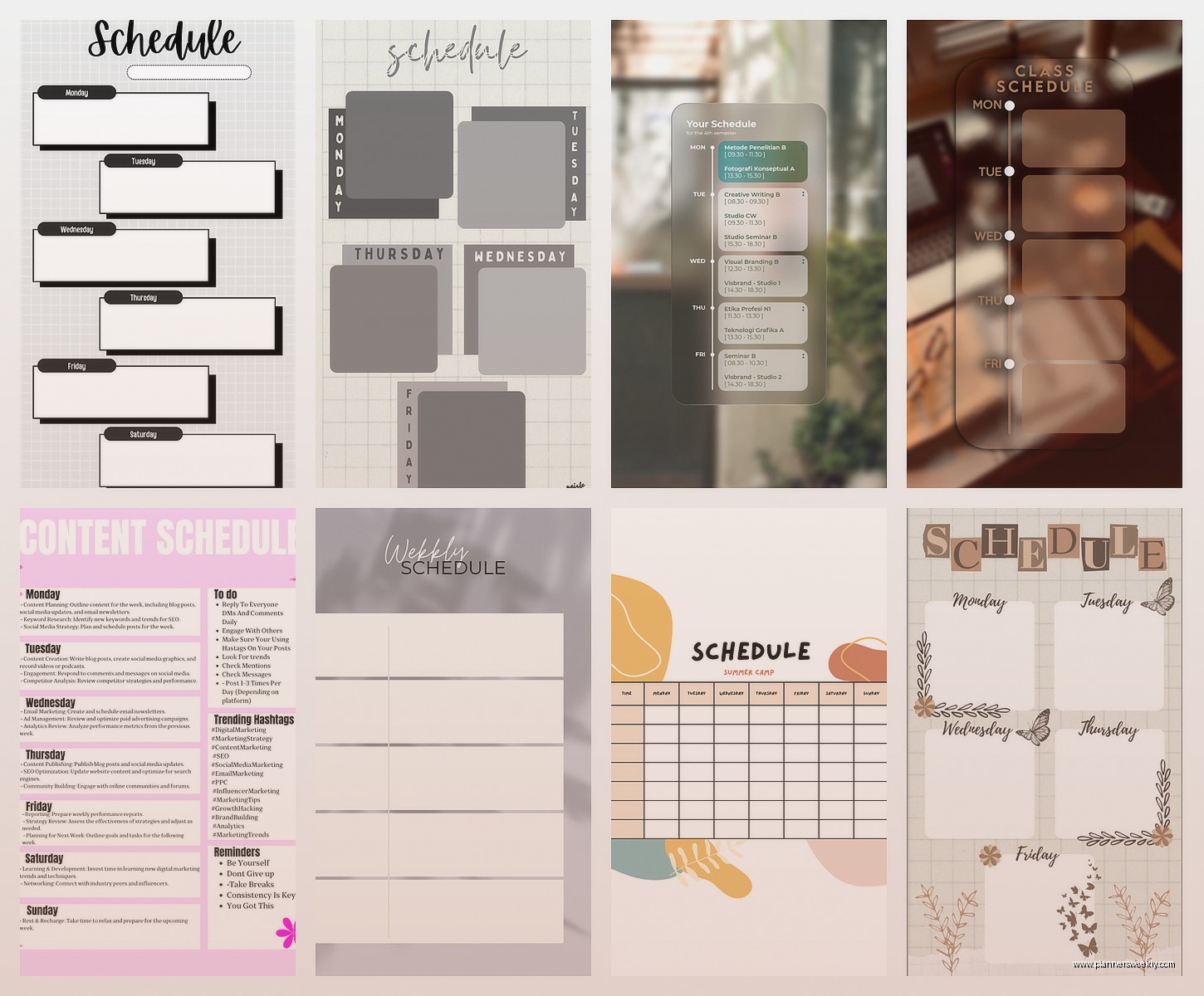
The templates I use most have:
- Editable text boxes that don’t randomly resize when you type
- A notes section at the bottom or side because you always remember random stuff mid-schedule
- Some kind of priority marker – could be a checkbox, could be a star system, whatever
- Space for the date at the top that’s actually visible
- Not too many colors because printing in black and white shouldn’t make it useless
Wait I forgot to mention – test the template by actually filling it out with a real day before you commit to printing 50 copies or whatever. I made that mistake with a weekly template that looked perfect empty but once I added my actual schedule it was completely illegible. The font was too small and there wasn’t enough contrast between the sections.
Digital vs Printable Templates
Okay so this is where people get really opinionated but here’s my take after using both: digital templates are better for schedules that change a lot. If you’re constantly moving things around, get a Google Sheets or Excel template that you can just drag and drop or edit quickly. I have one that’s set up with conditional formatting so if something’s marked urgent it automatically highlights in red, which sounds fancy but it’s literally just a built-in Excel feature.
Printable templates though… there’s something about writing things down that makes them stick in your brain better? My client actually mentioned this last week – she’s a lawyer and she prints her daily schedule every morning even though she has it digitally because the act of looking at the paper throughout the day helps her stay on track. She keeps it on her desk where her phone usually sits so she has to look at it instead of scrolling Instagram.
The Free Downloads I Actually Use
There’s this template from Vertex42 (it’s a website, not a company I’m sponsored by or anything, just genuinely useful). They have a weekly schedule template that’s split into categories – work, personal, meals, whatever you want. You can customize the categories which is huge because most free templates assume everyone’s schedule looks the same.
Template.net has a bunch but you gotta create a free account. Kinda annoying but worth it because they have industry-specific ones. Like if you’re a teacher there’s templates with period blocks, if you’re doing project management there’s ones with milestone tracking built in. I grabbed their basic weekly planner and it’s been my go-to for three months now.
Oh and Notion templates – okay so Notion itself isn’t a download exactly but people share template links for free all the time. There’s entire Reddit threads of people sharing their schedule templates. The learning curve is steeper than just downloading a PDF but if you’re already using Notion for other stuff it’s seamless. I have one set up that links my schedule to my task list so when I check something off it automatically updates both. Sounds complicated but someone else built it and I just copied their template.
The Time Block Method Templates
This is gonna sound weird but the best schedule template I’ve found isn’t actually called a schedule template. It’s called a “time blocking planner” and it’s specifically designed around the idea that you’re assigning tasks to time blocks instead of just listing when things happen.
The difference is subtle but it matters. Regular schedules are like “9am meeting, 10am emails, 11am project work” but time blocking templates have you write “9-10am: finish report intro + review notes” so you’re assigning actual tasks to the time slots. Way more effective for actually getting things done versus just tracking where your time goes.
I found a free one on Etsy of all places – yeah Etsy has free digital downloads mixed in with the paid ones. You have to filter by price (set max to $0) but there’s tons. The one I grabbed has different versions for different planning styles which is helpful when you’re figuring out what works for you.
How to Customize Templates Without Losing Your Mind
So you download a template and it’s almost perfect but not quite. Maybe the time slots start at 8am and you need 7am, or the font is too decorative and hard to read. Here’s the thing – most templates are editable even when they don’t look like it.
PDFs can be edited in Adobe Acrobat (the paid version unfortunately) or you can upload them to Google Drive and open with Google Docs which converts them to an editable format. It’s not perfect – the formatting gets wonky sometimes – but for basic text changes it works fine. I do this all the time with templates that are like 95% right.
For Excel or Google Sheets templates, just unlock the cells if they’re protected. Usually the template creator locked them to preserve formatting but you can unlock them in the settings. Then you can change colors, fonts, add rows, whatever. My weekly template started as someone else’s design but I’ve customized it so much it barely looks like the original.
This is where having basic software skills helps but honestly YouTube has tutorials for everything. I learned how to edit Excel templates by watching a 10-minute video while my cat was knocking things off my desk in the background, so it’s not complicated.
Printing Tips Nobody Tells You
If you’re printing templates regularly, get the settings right once and save it as a preset. I wasted so much paper printing things at the wrong size before I figured this out. Most schedule templates are designed for standard letter size (8.5×11) but they look better printed at like 95% scale with narrow margins. Gives you more white space around the edges.
Also – and this might just be me – but printing on slightly heavier paper makes the schedule feel more official? I use 28lb paper instead of regular 20lb and it’s sturdy enough that it doesn’t crumple in my bag. You can get it at any office supply store and it’s not that much more expensive.
Oh wait, if you’re printing a weekly spread that’s two pages, print it double-sided landscape orientation so when you fold it in half it opens like a book. Way easier to look at than two separate sheets. I watched my friend struggle with her schedule on two pieces of paper that kept sliding apart and it was like… just print it double-sided.
Templates for Specific Situations
Family schedules need a different setup than personal ones. The best family schedule templates have a row or column for each person so you can see everyone’s commitments at once. Color-coding helps here – each family member gets a color. Sounds kindergarten-ish but it works really well for quick visual scanning.
Project-based schedules should have milestone markers and dependency tracking. There’s free Gantt chart templates that work for this but they’re overkill for simple projects. I like the ones that just have weekly blocks with space to note what needs to happen that week and what it depends on from previous weeks.
Meal planning schedules are their own category and honestly they’re one of the most useful types. The good ones have the week laid out with space for breakfast, lunch, dinner, and a shopping list section. I started using one of these last month and it’s cut my grocery store trips in half because I actually plan instead of just wandering the aisles grabbing random stuff.
The Hybrid Approach
Here’s what I actually do after testing everything: I use a digital template for my master schedule and print a simplified daily version each morning. The digital one has everything – appointments, tasks, notes, links, whatever. But the printed one just has today’s essentials in big readable chunks.
This works because I can see my whole week digitally when I’m planning, but I’m not staring at a screen all day trying to remember what’s next. The physical paper sits next to my keyboard and I glance at it constantly. Best of both worlds and it only takes like 2 minutes to print each morning while my coffee brews.
You can set this up with any template that has both weekly and daily versions. Most template sites offer them as a set. Just keep the weekly one digital and print the daily pages as needed.
Troubleshooting Common Template Problems
If your template isn’t working, it’s usually one of these issues: too complicated, not enough space, wrong time frame, or ugly (yeah that matters). I’ve abandoned so many templates because they required me to fill out seventeen different sections when I just needed to know what I’m doing today.
The not enough space thing is real – if you have a lot of appointments or tasks, those minimalist templates with tiny boxes won’t cut it. Better to have a more basic design with actual room to write. I mean type. Or write, whatever.
Wrong time frame means you’re using a daily template when you need weekly overview, or vice versa. I spent two weeks trying to make a monthly calendar work for daily scheduling before I realized I just needed a different template type entirely. Monthly views are for seeing the big picture, not for hour-by-hour planning.
And okay the ugly thing – if you hate looking at your planner you won’t use it. Find something that’s at least neutral to your taste. Doesn’t have to be gorgeous but it shouldn’t make you cringe every time you open it.
Anyway that’s basically everything I’ve learned from way too much time comparing templates when I should’ve been actually working. The main thing is just pick something simple, try it for a week, and adjust as needed. You’re not marrying the template, you’re just testing it out.
