
Digital Productivity, Online planners, Planners
Free Work Calendar: Best Employee Scheduling Tools
Mar
Okay so I just spent like three weeks testing every free work calendar tool because my coaching clients kept asking which one actually works for small teams, and honestly? Most of them are fine but here’s what I found.
When You’ve Got 5-10 People and Everyone’s Confused
If you’re running a small coffee shop or retail store where shifts are the main thing, Google Calendar is gonna disappoint you real fast. I know everyone thinks “oh we already use Gmail” but trust me, scheduling actual shifts with it is a nightmare. You end up with like seventeen overlapping events and nobody knows who’s actually working.
What worked way better for my client who runs a bookstore: Homebase. The free version lets you schedule up to 20 employees which is honestly more than enough for most small businesses. You can set it up so people clock in from their phones, and it has this thing where employees can swap shifts without you being the middleman for every single text exchange.
Here’s what I actually like about it – the interface doesn’t look like it was designed in 2008. My client’s teenage employees figured it out in like five minutes without asking her anything. It sends automatic reminders before shifts which cut down her no-shows by a ton.
The catch is the free version doesn’t have the fancy labor cost tracking stuff, but honestly if you’re just trying to figure out who works Tuesday morning you don’t need that yet.
For Teams That Work Remotely or Have Flexible Hours
This is where things get weird because technically you don’t need “scheduling” software you need more like… availability coordination? I dunno what to call it.
I’ve been using Calendly for my own coaching sessions for years but it’s also surprisingly good for team scheduling if everyone has different hours. The free version is pretty limited though – you can only have one “event type” which means if you’re trying to schedule both client meetings AND internal team check-ins, you’re gonna hit that wall fast.
What I did instead for my own small team (it’s just me and two VAs but still): Doodle. I know it looks super basic and kinda outdated but hear me out. When you need to find a time that works for multiple people and everyone’s in different time zones, Doodle is actually perfect. You create a poll with like eight possible meeting times, people click what works for them, done.
Oh and another thing – if your team uses Slack already, the free version of Clockwise integrates with Google Calendar and automatically finds meeting times that don’t completely destroy everyone’s focus time. I tested this last month when my cat kept walking across my keyboard during a demo and honestly even with that distraction I could see how useful it was. It color-codes your calendar by focus time versus meetings versus flexible stuff.
The Microsoft Teams Calendar Situation
Wait I forgot to mention – if your company already uses Microsoft 365, the built-in Teams calendar is actually not terrible for basic scheduling. You can see everyone’s availability without sending seventeen “does Thursday work?” emails. But it’s definitely geared toward meeting scheduling rather than shift work.
I had a client switch from trying to use Teams for their retail staff schedule and it was just… no. Wrong tool for the job. But for office teams doing project work? It’s already there and it works fine.
When You Need Actual Shift Coverage and Time Tracking
This is gonna sound weird but When I Work is probably the best free option I tested for this specific use case. The free version supports up to 75 people which is insane for a free tool. My client who manages a small restaurant switched to this and immediately the “hey can you cover my shift” texts to her personal phone dropped by like 80%.
The app lets employees request time off, trade shifts, and pick up open shifts all without the manager having to be involved in every single transaction. There’s this built-in messaging thing too so people can communicate about coverage within the app instead of scattered across text, Facebook, and wherever else.
The free version doesn’t have the advanced reporting but you can still export timesheets as PDFs which is enough for basic payroll. I actually timed how long it took my client to do her weekly schedule – went from like 45 minutes of texting and calling people to about 15 minutes of dragging and dropping shifts.
What About Humanity?
Okay so funny story, I tried to test Humanity (now called TCP) and got so confused by their pricing tiers that I almost gave up. The “free” version is really more like a trial that’s generous enough you might never need to upgrade if you have under 15 people. It’s got more features than When I Work’s free tier but the interface is… a lot. Like there are so many buttons and options.
If you’re the kind of person who wants to customize every little thing and you don’t mind spending an afternoon learning software, Humanity is actually really powerful. But if you want something you can set up during your lunch break, skip it.
The Spreadsheet Approach That Actually Works
Look, I’m gonna be honest – sometimes a shared Google Sheets document is genuinely the right answer. I know that sounds like I’m copping out but hear me out.
I have a client who runs a dog walking business (like 8 walkers) and we set up this color-coded spreadsheet with data validation dropdowns and it works perfectly for her. Every walker has a different color, the spreadsheet is organized by week, and there are separate tabs for schedule versus time off requests versus notes.
The advantage is it’s infinitely customizable and everyone already knows how to use a spreadsheet. The disadvantage is it doesn’t send automatic reminders and people can accidentally mess up each other’s entries if you don’t set the permissions right.
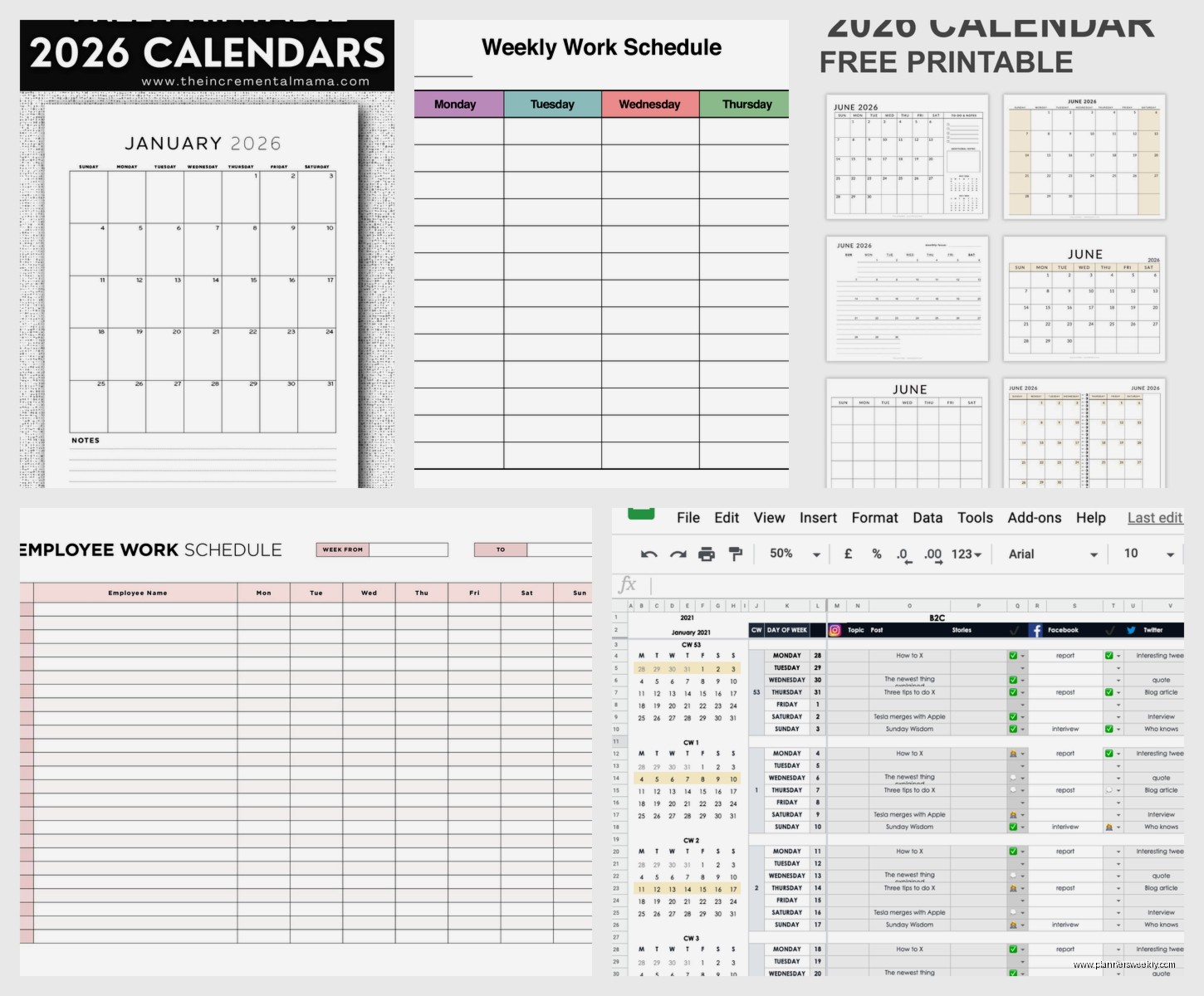
We added a column for “confirmed” where walkers have to initial their shifts and that solved like 90% of the miscommunication issues. Cost: literally zero dollars.
For Creative Teams or Project-Based Scheduling
This is where my stationery review brain and my productivity coaching overlap because honestly? Sometimes the best “calendar” is a visual board.
Trello‘s free version works surprisingly well if you think of each card as a shift or task and use the calendar power-up. I use this for my own content calendar – each blog post or review is a card, and I can see everything laid out by due date. You could absolutely adapt this for employee scheduling if your work is more project-based than hourly shifts.
The free version limits you to one power-up per board though, so if you also want the timeline view or something else, you gotta choose. But the calendar power-up plus labels for different employees or departments gets you pretty far.
My video editor and I coordinate everything through Trello and it means I’m not constantly asking “hey did you get that file I sent” because we can both see exactly what’s in progress.
Notion for the Obsessive Organizers
Okay if you’re already deep into Notion you can absolutely build a work calendar in there. I’ve seen some wild templates people have made with linked databases and calendar views and filters. The free personal plan is generous enough for a tiny team.
But real talk? Unless you’re already a Notion person, the learning curve is steep. I spent an entire Saturday (my partner was watching football so I had time) trying to set up a scheduling system in Notion for a client and eventually we just… went with something simpler. It’s powerful but maybe too powerful for just basic “who works when” needs.
The Mobile App Situation You Gotta Consider
Something I didn’t think about until my client’s employees complained: how does this work on phones? Because if your team is mostly checking their schedule on mobile, the app better be good.
Homebase and When I Work both have really solid mobile apps. Google Calendar obviously works fine on phones. But some of the more complex scheduling tools have mobile apps that feel like afterthoughts – tiny buttons, hard to read, crashes occasionally.
I literally had employees test each app while I was reviewing them and asked “would you actually check this every day or would you make your manager text you the schedule?” That told me everything.
Integration Stuff That Matters
Oh wait I should mention integrations because this bit me once. If you’re using Slack or Teams for communication, check if your scheduling tool connects to it. Getting schedule notifications in the same place you’re already checking messages makes a huge difference.
When I Work integrates with Slack. Homebase sends SMS reminders. Google Calendar connects to literally everything because it’s Google. These little quality of life things add up.
I had a retail client whose employees kept missing the scheduling app notifications because they had notifications turned off for everything (relatable honestly). Once we switched to a tool that could send actual text messages as reminders, the problem mostly went away.
What Didn’t Make the Cut
I tested a bunch of other tools that were either too limited in the free version or just kinda janky. ZoomShift looked promising but the free version only supports one location and like 10 employees. Deputy has a “free trial” but not really a free tier. Sling caps the free version at 20 shifts per month which sounds like a lot until you realize that’s like… one employee working 5 shifts a week.
There’s also Findmyshift which I wanted to like because the name is straightforward but the interface felt clunky and outdated compared to the others. Maybe it’s been updated since I tested it last month, I dunno.
My Actual Recommendation Based on Your Situation
If you’re scheduling hourly shifts for retail, food service, or similar: Homebase or When I Work. Both free tiers are generous, both have good mobile apps, both let employees do most of the communication themselves.
If you’re coordinating meetings and project deadlines for a remote team: Google Calendar plus Doodle for finding meeting times. Maybe add Clockwise if everyone’s calendar is constantly a mess.
If you’re a tiny team (under 5 people) and just need something simple: honestly a shared Google Calendar or even a well-designed spreadsheet is probably fine. Don’t overcomplicate it.
If you want something visual and you’re more project-focused: Trello with the calendar power-up.
The main thing I learned testing all these is that the “best” tool completely depends on what kind of work you’re scheduling. A tool that’s perfect for a cafe is terrible for a creative agency and vice versa. Figure out if you need shift coverage or meeting coordination or project timelines first, then pick the tool that matches that specific need.
Also maybe consider what your team will actually use consistently because the fanciest tool in the world doesn’t help if everyone ignores it and texts you instead.
