
Digital Productivity, Online planners, Planners
Free Planner Guide: Best Templates & Online Tools 2026
Apr
Okay so I just spent like three weeks testing every free planner template I could find because honestly my old system was a mess and I needed something that actually worked without paying $30 for another fancy planner I’d use twice.
Google Sheets Planners Are Actually Amazing Now
I’m gonna start with Google Sheets because I genuinely didn’t expect this to be my favorite but here we are. The template gallery has this daily planner that you can customize without knowing any formulas which is huge for me because I failed Excel in college. You just click Extensions > Template Gallery and search for “planner” and there are like forty options.
The one I’ve been using is called “Personal Daily Planner” and it auto-populates dates which sounds basic but my last planner I had to write the date every single day and I kept forgetting what month it was. This one has tabs for monthly view, weekly breakdown, and then daily task lists. You can color-code everything and it syncs across devices so when I’m at the coffee shop pretending to work I can still access it from my phone.
What actually works about it:
- The checkbox function where you can tick things off and they get a strikethrough
- You can share it with other people if you’re coordinating schedules
- Conditional formatting that highlights overdue tasks in red automatically
- It’s literally just a spreadsheet so you can add whatever columns you want
The annoying part is it doesn’t have great mobile formatting so if you’re mostly on your phone this might not be it. But for desktop planning it’s honestly better than some paid options I’ve tried.
Notion Templates That Don’t Require a PhD
Okay so Notion. Everyone talks about Notion like it’s life-changing and I resisted for so long because the learning curve looked insane. But they added a template button that makes it way easier now. You don’t have to build everything from scratch which was my main issue before.
There’s this template called “Student Dashboard” that’s free and even though I’m not a student it works perfectly for managing multiple projects. It has a calendar view, a kanban board for tasks, and a notes section all on one page. I use the kanban board for my client projects and it’s the first time I haven’t lost track of who needs what by Friday.
The setup process:
You create a free account, go to Templates on the sidebar, filter by “personal productivity” and just duplicate whatever looks good. The Ultimate Life Planner template is really popular but honestly it’s too much for me. Too many databases connected to other databases and I just wanted to write down my appointments.
I ended up using a simpler one called “Weekly Agenda” that has sections for each day, a priorities list, and a habit tracker. The habit tracker thing is actually helping me remember to drink water which sounds dumb but I was getting headaches every afternoon and turns out I was just dehydrated.
Wait I forgot to mention the mobile app is actually good unlike Google Sheets. You can check stuff off while you’re standing in line at the grocery store or whatever. The offline mode is a bit glitchy though so if you’re on a plane maybe screenshot your important stuff first.
The Templates I Actually Use From Notion
- Weekly Agenda – basic but that’s what I needed
- Content Calendar – if you’re doing any social media or blog stuff this one auto-sorts by date
- Reading List – okay this isn’t planner related but I keep forgetting what books people recommend so I added this
- Meal Planner – has a grocery list that pulls from your planned meals which is genuinely helpful
Canva Has Planner Templates Now and They’re Gorgeous
This is gonna sound weird but Canva added editable planner templates and they’re actually functional not just pretty. I always thought Canva was just for making Instagram graphics but they have daily, weekly, and monthly planners you can customize and print or use digitally.
The free version has limited templates but honestly there’s still like twenty good ones. I’ve been using a minimalist weekly layout that has time blocks from 6am to 10pm. You can change the colors, add stickers if that’s your thing, and export it as a PDF to print or keep on your tablet.
My friend Rachel uses the digital version on her iPad with Apple Pencil and she swears by it. I just print mine because I like physically writing things down. There’s something about crossing stuff off with a real pen that makes me feel more accomplished even though that’s probably just in my head.
How to find them:
Search “planner” in the Canva search bar, filter by free templates, and pick whatever layout matches how your brain works. If you’re a time-blocking person get one with hourly slots. If you’re more of a brain-dump person there are ones with just blank sections you can fill however.
The only downside is you can’t really sync it across devices unless you’re opening Canva every time which is annoying. So this works better if you’re printing it or using it on one device consistently.
Trello for People Who Think Visually
Okay so funny story I started using Trello because my dog ate my paper planner. Like actually chewed through two months of planning. And I was so annoyed I decided to go fully digital and Trello was the first thing I tried.
It’s a kanban board system which basically means you have columns and cards you move between them. I have columns for “This Week,” “Next Week,” “Waiting On Other People,” and “Done.” Every task is a card and you just drag it over when its status changes.
The free version lets you have unlimited cards and up to ten boards which is more than enough unless you’re running a whole company. You can add due dates, checklists within cards, attach files, and comment on stuff. I use the checklist feature for tasks that have multiple steps so I don’t forget the annoying parts like “actually send the follow-up email.”
Power-Ups That Make It Better
Free accounts get one power-up per board and I always use the Calendar power-up. It shows all your cards with due dates in a calendar view so you can see what’s coming up. The other good one is the Card Repeater if you have recurring tasks but you’d need to pick between that and the calendar which is tough.
There’s also a mobile app that actually works well. You can add cards from your phone, check stuff off, get notifications when things are due. I have mine set to remind me the morning of and then an hour before which seems excessive but I used to miss deadlines all the time so.
Microsoft To Do Is Underrated Honestly
Nobody talks about Microsoft To Do but it’s completely free and syncs with Outlook if you use that for work. It has daily planner view, list organization, the ability to share lists with other people, and this “My Day” feature that I actually use every morning.
The My Day thing is basically you review all your tasks and pick which ones you’re actually doing today. It helps me not get overwhelmed by my massive list of everything I need to do eventually. Just focus on today’s stuff and deal with the rest tomorrow.
You can also add tasks by voice on the mobile app which I use when I’m driving and remember something. Just “Hey Siri open Microsoft To Do” and then dictate whatever. It’s not perfect at understanding me but it’s better than forgetting completely.
What makes it different from other task apps:
- The suggested tasks feature that pulls from your emails if you use Outlook
- You can add tasks to multiple lists at once
- Recurring tasks are easy to set up unlike some apps where it’s buried in settings
- The interface is really clean not cluttered with features you’ll never use
Oh and another thing, it integrates with Microsoft Planner if your workplace uses that so your work tasks and personal tasks can be in the same app but separate lists. I keep my client work and personal errands separate but check both in the same place.
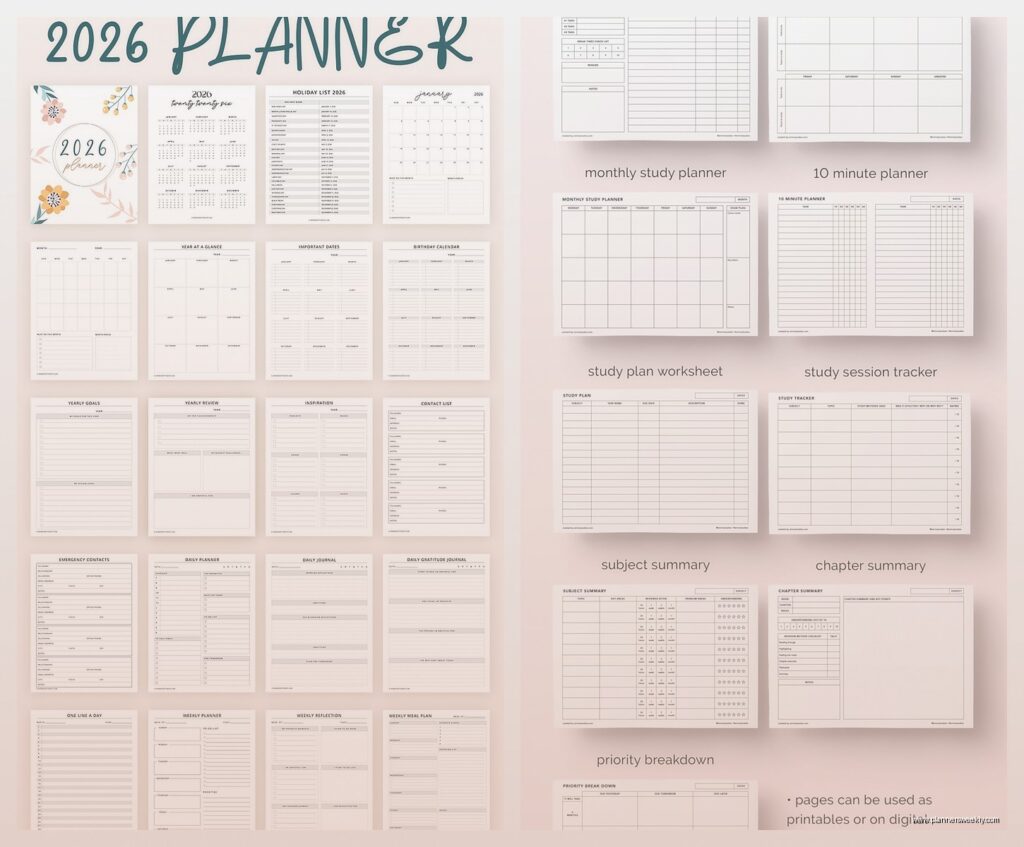
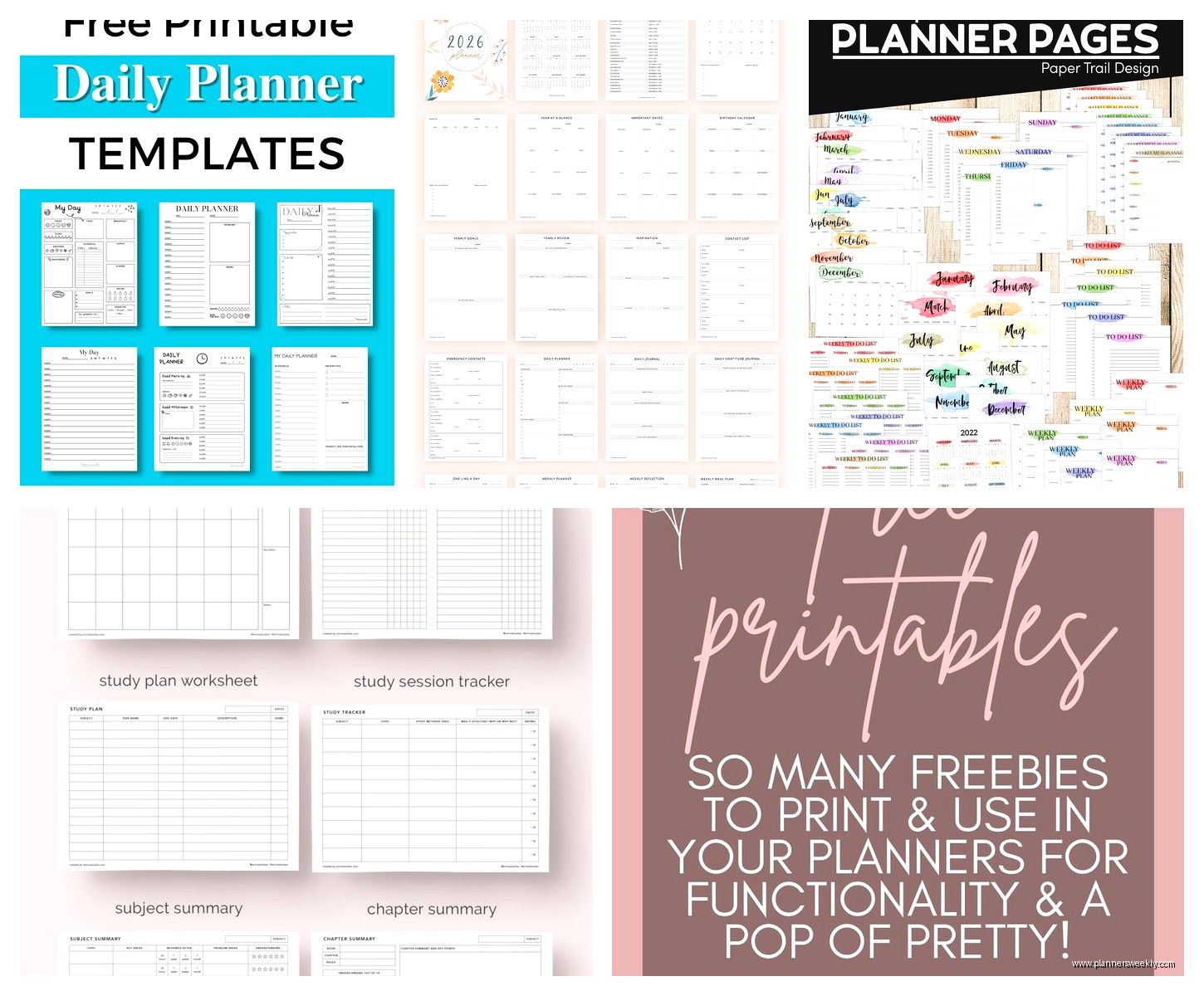
Printable PDF Templates From Random Websites
Sometimes you just want a PDF you can print and stick in a binder and there are so many free ones out there. My go-to sites are scattered across bookmarks I should probably organize but here’s what I remember:
Vertex42 has Excel and PDF templates that are really functional. Like their weekly planner has time slots, a priorities section, notes area, and it prints perfectly on regular paper. No weird formatting issues where half of it gets cut off.
101 Planners has hundreds of free printables in different styles. Some are super decorated with flowers and stuff, others are just lines and boxes. I use their basic daily planner sheet that’s one page per day with hourly time blocks. I print a week at a time and keep them in a cheap binder from Target.
The nice thing about printables is you can mix and match. Use a monthly calendar from one site, weekly pages from another, habit trackers from somewhere else. Build exactly what you need instead of adapting to someone else’s system.
Where to Actually Find Good Free Templates
- Vertex42 – very functional, not super pretty but who cares
- 101 Planners – huge variety, organized by style
- Canva – already mentioned but worth repeating
- Template.net – free section has decent options if you scroll past the paid ones
- Pinterest – honestly just search “free planner printable” and you’ll find hundreds
ClickUp Free Plan Is Surprisingly Robust
I tested ClickUp last week because someone in my productivity group wouldn’t shut up about it and okay they were kinda right. The free version gives you unlimited tasks and unlimited members which is insane. Most apps limit you at like 5 tasks or whatever on free plans.
It’s more complex than the other options so there’s definitely a learning curve but once you set it up it’s really powerful. You can view your tasks as a list, board, calendar, or timeline. I mostly use calendar view because I’m very deadline-driven but the board view is helpful when I’m planning out a big project.
The template center has a personal productivity template that sets up a whole workspace for you with task lists, goals, habit tracking, and a dashboard. You can customize all of it but having the structure already there makes it way less intimidating.
My client canceled last week so I spent like an hour just playing around with the different views and features. You can create custom fields for tasks which sounds boring but it means you can track whatever matters to you. I added a field for “energy level required” so I can tackle high-energy tasks when I’m actually awake and save mindless stuff for when I’m tired.
Combination Approach That’s Working for Me Right Now
Honestly I’m using like three different tools because no single planner does everything I need. Microsoft To Do for quick daily tasks and errands, Notion for project planning and notes, and a printed weekly sheet for time blocking my actual schedule.
This probably sounds chaotic but it works because each tool does its specific job really well. Trying to force everything into one system never worked for me. I’d either end up with a cluttered mess or I’d abandon it completely because it was too rigid.
The key thing I figured out after testing all these is that free doesn’t mean worse it just means you gotta be more intentional about setup. Paid planners are designed to work for everyone out of the box but free tools you have to customize to fit your actual life. Which takes more time upfront but then it’s exactly what you need.
Also most of these have paid versions if you end up loving them and need more features but I haven’t hit the limits of the free versions yet and I’m managing like six client projects plus my own stuff so unless you’re running a whole team you’re probably fine with free.
