
Digital Productivity, Online planners, Planners
Google Sheets Daily Schedule Template: Free Guide
Mar
Okay so I’ve been building daily schedule templates in Google Sheets for like three years now and honestly it’s one of those things that seems way more complicated than it actually is but then you mess up the formulas once and suddenly you’re in deep.
Just Start With The Basic Grid Setup
First thing – open a new Google Sheet and forget everything you think you know about making it pretty right away. I spent an entire morning once making mine look gorgeous with colors and borders and then realized I built the whole time structure wrong and had to start over while my dog was barking at the mailman.
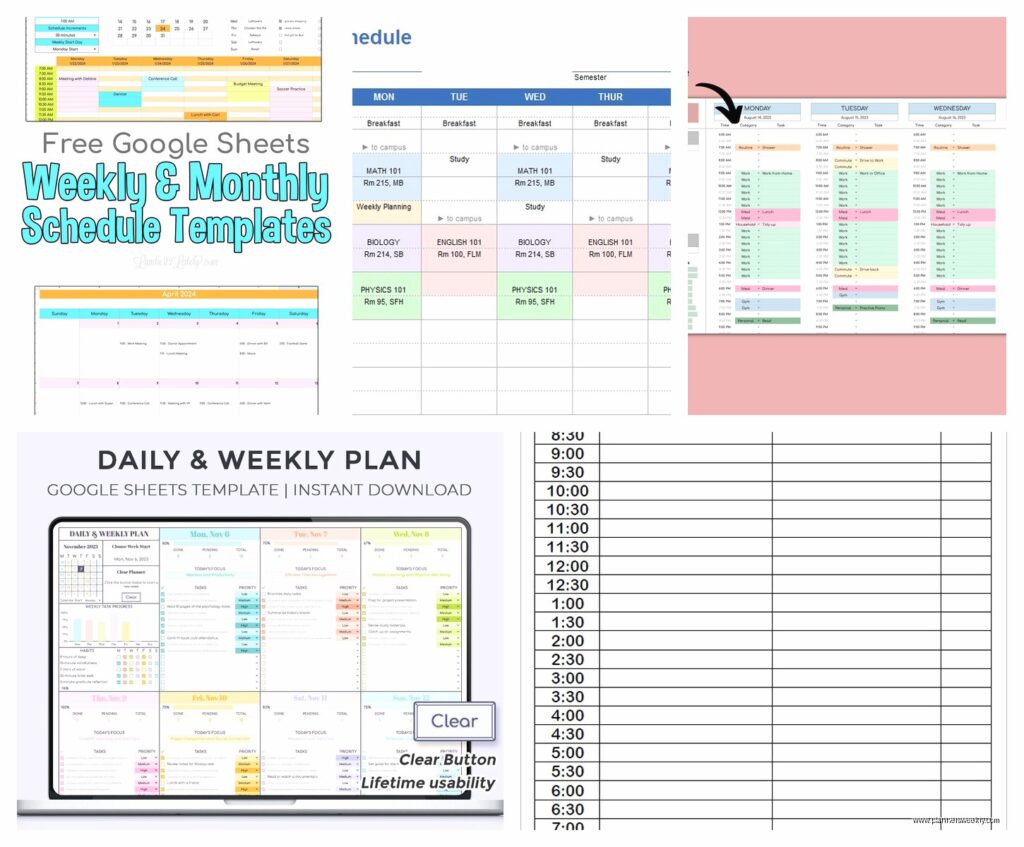
You want Column A for your time slots. I usually do 30-minute increments starting at 6:00 AM because that’s when normal human days start, but honestly if you’re a night owl just start at whatever time makes sense. Type “6:00 AM” in A1, then “6:30 AM” in A2. Here’s the thing though – you can actually drag down and Google Sheets will auto-increment the times but it’s weirdly finicky about AM/PM transitions.
The easier way is to just type your start time, then use this formula in A2: =A1+TIME(0,30,0)
That adds 30 minutes to whatever is in the cell above. Then you drag that formula down for however many rows you need. I usually go till 10:00 PM which is like 32 rows or something.
Column Setup That Actually Works
Column B should be your main task or activity. Column C is where I put duration or notes – this is gonna sound weird but I found that having a separate notes column is more useful than trying to cram everything into one cell. Column D can be priority level if you’re into that, or honestly just leave it for random thoughts.
Oh and another thing – freeze that first row and Column A. View menu > Freeze > 1 row, then View > Freeze > 1 column. This changed my life because when you’re scrolling through your day you can still see what time it is.
The Color Coding System I Actually Use
I tried like fifteen different color systems before landing on this. Work tasks are light blue, personal stuff is light green, appointments are light yellow, and anything urgent is light red. Not bright colors – the light pastels – because staring at neon all day makes your eyes hurt.
To set this up properly you gotta use conditional formatting. Select your range (like B1:B50), then Format > Conditional formatting. Here’s where it gets interesting – you can set rules based on text content.
Wait I forgot to mention – you should probably put categories in brackets at the start of each task. Like “[WORK]” or “[PERSONAL]” or “[APPOINTMENT]”. Then your conditional formatting rule is: if text contains “[WORK]”, make it light blue. Add a new rule for each category.
The Time Tracking Formulas That Don’t Suck
This is where most people give up but trust me it’s worth it. At the bottom of your sheet – like row 50 or wherever your day ends – you want a summary section.
Let’s say you want to track total work hours. In a cell at the bottom, use:
=COUNTIF(B:B,”[WORK]*”)*0.5
This counts how many cells contain “[WORK]” and multiplies by 0.5 because each slot is 30 minutes. So if you have 8 work blocks, that’s 4 hours.
For actual time ranges though, I do something different. I add a Column E for “Time Spent” and use a formula that calculates the difference between start times. But honestly for a daily schedule you probably don’t need that level of detail unless you’re billing clients.
Drop-Down Menus Because Typing Is Annoying
My client canceled last Tuesday so I spent an hour setting up data validation and it was totally worth it. Select Column B (or wherever your tasks go), then Data > Data validation.
Choose “List of items” and type in your common categories:
[WORK], [MEETING], [PERSONAL], [EXERCISE], [MEAL], [BREAK]
Now you can just click and select instead of typing every time. You can still type other stuff too if you need to – just uncheck “Reject input” in the validation settings.
Templates For Different Schedule Types
Okay so here’s something I figured out – you don’t need one template for everything. I have like four different versions:
Regular workday template: 6 AM to 10 PM, work-focused, includes commute blocks and standard meal times
Weekend template: Starts at 8 AM because who wakes up at 6 on Saturday, more flexible blocks, color-coded for errands and social stuff
Deep work template: This one’s different – instead of 30-minute blocks I use 90-minute chunks because that’s how long actual focus sessions should be. Only goes from 8 AM to 6 PM.
Meeting-heavy template: Has an extra column for meeting links and another for attendees. This lives in my Google Drive and I duplicate it every Monday.
To save these as templates, just make a folder in Google Drive called “Schedule Templates” and copy the sheet there. When you need it, right-click > Make a copy.
The Checkbox Thing That Makes It Satisfying
Insert a Column A (so your times shift to Column B). In the new Column A, go to Insert > Checkbox. Add a checkbox to every row that has a task.
Now you can check things off as you complete them. It’s weirdly satisfying and also you can see at a glance what’s done. Plus you can use conditional formatting to make completed tasks gray out – set a rule where if Column A is TRUE (checked), then the entire row turns gray.
Oh and you can count completed tasks with =COUNTIF(A:A,TRUE) somewhere at the bottom.
Linking To Other Sheets And Calendars
This is where Google Sheets gets actually powerful. You can import events from Google Calendar using IMPORTDATA or external APIs but honestly that’s complicated and I’ve never gotten it to work smoothly.
What I DO use is linking between sheets. Like I have a master project tracker in another tab, and in my daily schedule I’ll reference specific projects. The formula is just =Sheet2!A1 or whatever cell you’re pulling from.
You can also hyperlink cells. Select a cell, right-click, Insert link, and you can link to:
- Another Google Doc
- A website
- A specific cell in your sheet
- An email draft
I link my morning tasks to my project documents so I can click straight from my schedule into whatever I need to work on.
The Weekly View Template
Wait I forgot to mention – you might want a weekly view instead of just daily. For this, set up columns for each day (Monday through Sunday) and rows for times. It’s basically the same concept rotated.
Your time blocks go down Column A, then columns B through H are your days. This gives you a bird’s eye view of the week.
The annoying part is you can’t easily drag formulas across days because each day is independent, but you can copy-paste formatting which saves some time.
Mobile Access And The App
The Google Sheets app is actually decent for checking your schedule on the go. It’s not great for editing – the keyboard covers half the screen and formatting is a pain – but for reference it works fine.
I have my daily schedule template saved in a specific folder that’s starred, so I can access it quickly. On mobile you can check off those checkboxes we added earlier which is the main thing you need.
One trick: if you’re gonna use this on mobile regularly, make your font size bigger. Like 11 or 12 point instead of 10. Select all cells (click the corner box), then increase font size from the toolbar.
Automation With Scripts If You’re Feeling Fancy
Okay so this is more advanced but Google Sheets has Apps Script which is basically JavaScript for spreadsheets. I’m not gonna pretend I’m an expert but I did manage to set up a script that creates a new daily schedule sheet every morning at 6 AM.
Go to Extensions > Apps Script, and you can write functions that run automatically. There are templates online for duplicating sheets on a schedule. I found one on Reddit actually while watching that show about the chess prodigy, spent like two hours getting it to work but now I never have to manually copy my template.
Print Settings That Don’t Waste Paper
If you actually print your schedule (I do sometimes because paper feels more real somehow), you gotta adjust the print settings or it’ll be a mess.
File > Print, then:
- Set scaling to “Fit to width”
- Choose portrait orientation for daily, landscape for weekly
- Under formatting, select “Show gridlines”
- Uncheck “Show notes” unless you actually use cell notes
I usually print Sunday night for the week ahead and it ends up being like 3-4 pages depending on how much I’ve packed in.
Common Mistakes I Made So You Don’t Have To
Don’t merge cells for longer tasks. It breaks formulas and makes everything annoying to edit later. Just let the task span multiple rows visually or use one row and note the duration.
Don’t over-engineer the template before using it. I spent weeks building this elaborate system with pivot tables and charts and then never actually used it because it was too complicated for a daily schedule. Keep it simple.
The time format thing – make sure Column A is formatted as Time not as Text. Right-click the column header, Format cells > Time. Otherwise your formulas won’t work right.
And honestly don’t feel like you need to fill every single time slot. Some of my best days have big blank chunks because that’s buffer time for when things run over or I just need to breathe.
Sharing With Teams Or Family
If you’re coordinating with other people, the Share button (top right) lets you give view or edit access. For family schedules I usually give everyone edit access. For work stuff, sometimes just view access with comment permissions so people can suggest changes.
You can also publish to web (File > Share > Publish to web) if you want a read-only public link, but be careful with that because anyone with the link can see it.
The comment feature is actually useful – if someone needs to flag a scheduling conflict they can right-click a cell and add a comment instead of editing directly.
Keeping It Updated Without Losing Your Mind
Here’s the real talk – the best template in the world doesn’t matter if you don’t actually use it. I try to fill out my schedule either the night before or first thing in the morning with coffee.
Sunday evening is when I do my weekly planning and rough out the whole week. Then each morning I adjust based on what actually needs to happen.
Some people duplicate their template daily, some just clear it out and reuse the same sheet. I duplicate because I like having an archive of what I actually did versus what I planned, but that’s probably overkill.
The key thing is making it low-friction enough that updating it doesn’t become another task that stresses you out. If adding something takes more than 10 seconds you’re not gonna do it consistently.
Also don’t beat yourself up when your actual day looks nothing like your schedule. That happens to me like three times a week minimum. The schedule is a guide not a prison.


