
Digital Productivity, Online planners, Planners
iPad Planner Guide: Best Apps & Digital Templates
Mar
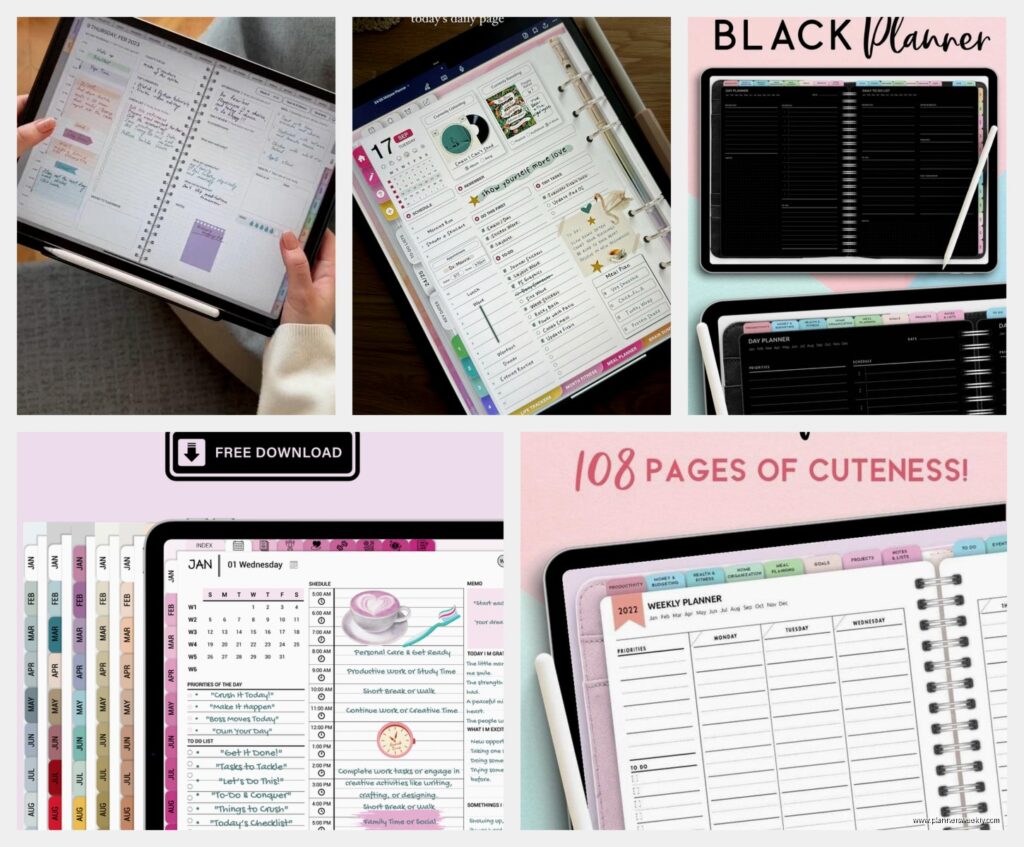
Okay so I just switched to GoodNotes 6 last week after using Notability for literally three years and here’s what I wish someone had told me before I bought like seven different planner templates that I absolutely did not need.
GoodNotes is gonna be your best bet if you’re actually serious about digital planning. I know everyone says this but they’re right. The thing is, it handles PDFs better than anything else and most planner templates you’ll buy are PDFs. Notability is great for taking notes in meetings but for actual planning with hyperlinks and stickers and all that stuff, GoodNotes just works better. It’s like $9.99 now I think? They switched to a subscription model but you can still buy it outright.
The hyperlinks thing is huge. When you get a good planner template, you can tap on “March” in your yearly overview and it jumps straight to March. Tap on a date and boom, you’re in that day’s page. Notability technically supports this but it’s clunky and sometimes the links just… don’t work? I wasted so much time tapping the same button over and over.
Which Planner App Actually Makes Sense
So here’s my honest ranking after testing these for way too long:
- GoodNotes 6 – best for people who actually want to plan and not just take notes
- Notability – better for students or if you’re in a lot of meetings and need audio recording
- Noteshelf – honestly pretty good but the interface feels dated
- Zinnia – this is newer and it’s specifically FOR planning but it’s subscription only which annoyed me
- Kilonotes – I tried this for like two days and couldn’t figure out the filing system
Wait I forgot to mention Planner for iPad which is confusingly named because they’re all planners for iPad but whatever. It’s free with in-app purchases and actually pretty decent if you don’t want to spend money yet. The free templates are basic but functional.
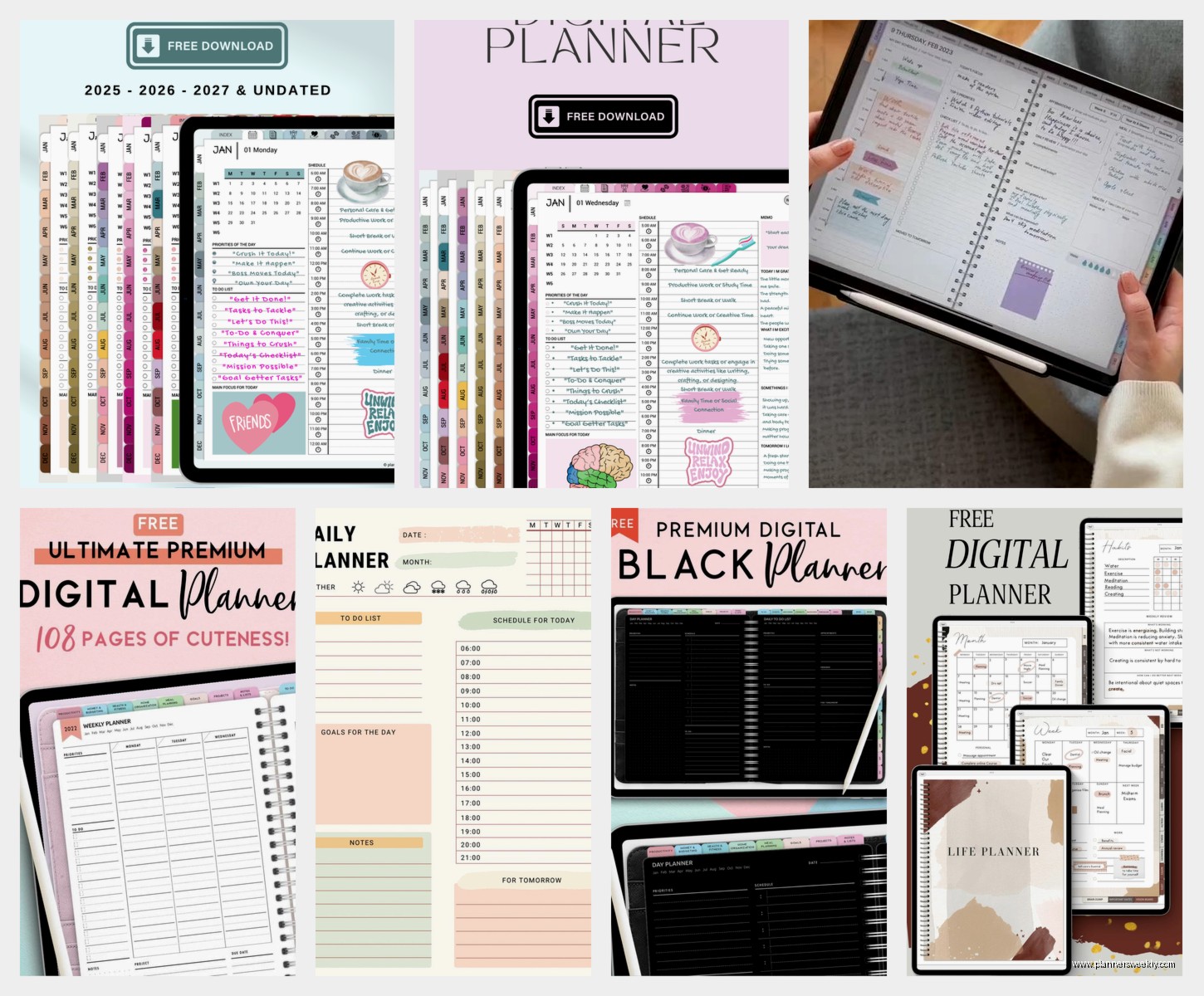
Here’s the thing though – the app matters less than you think. What really matters is finding a template that matches how your brain actually works. I bought this gorgeous minimalist template from Etsy and used it for exactly three days because I need color coding or I forget everything.
Template Shopping Is A Rabbit Hole
Okay so funny story, I went down an Etsy rabbit hole at like 2am while watching Love Is Blind and spent $87 on planner templates. Do I use all of them? Absolutely not. Do I regret it? Also no because I found my perfect setup in there somewhere.
The best template shops I’ve actually used and not just bought from and abandoned:
BlueAndGrayPaperCo on Etsy makes these really functional dated planners. Not the prettiest but the layouts actually make sense. They have daily, weekly, and monthly views that all hyperlink together. I used their 2024 planner for four months straight which is a record for me.
PlannerKate1 has more aesthetic options if you care about that. Her templates photograph really well which matters if you’re the kind of person who likes posting your planning spreads. I’m not judging, I did this for like three weeks before I got bored.
DigitalPlannerDesigns is good for undated planners. This matters more than I thought it would because I went through a phase where I just didn’t plan anything for two weeks and with a dated planner you have all these blank pages mocking you. With undated you just skip ahead and pretend it never happened.
Oh and another thing – watch out for templates that are designed for Samsung tablets or other Android devices. They’ll usually work on iPad but sometimes the hyperlinks are positioned wrong and you’ll be tapping in the wrong spots. It’s incredibly annoying. Always check if it specifically says iPad compatible.
What To Actually Look For In A Template
This is gonna sound weird but test the color of the pages before you commit. Some templates have these bright white backgrounds and after staring at them for 30 minutes my eyes hurt. I switched to a cream/beige background and it made such a difference. Most shops show this in their preview images but not always.
Hyperlinks are non-negotiable. If a template doesn’t have working hyperlinks it’s basically just a PDF and you might as well print it out. You want to be able to jump between months, weeks, and days without scrolling through 400 pages.
Sticker compatibility is weirdly important. If you’re gonna use digital stickers (and trust me you will because they’re addictive), make sure your template works with them. GoodNotes handles stickers as “elements” that you can move around. Some people use dedicated sticker apps like Sticker Mule or Vellum but I just buy sticker packs from the same Etsy shops and import them.
Check how many pages it has. I made the mistake of buying a template with daily pages for an entire year which was like 800+ pages and it made GoodNotes lag on my older iPad. If you have an iPad Pro or something newer this probably doesn’t matter but my 2019 iPad Air was struggling.
The Setup Process Nobody Explains
Okay so you bought GoodNotes and you bought a template. Now what? This part confused me for like an hour the first time.
Download your template from Etsy or wherever. It’ll probably be a zip file. You gotta unzip it first – just tap on it in your Files app and it’ll extract. Then you’ll have a PDF file or sometimes multiple PDFs if you bought a bundle.
Open GoodNotes and tap the + button. Choose “Import” and find your PDF. It’ll ask if you want to import as a new document or add to an existing one. Choose new document obviously.
Now here’s what nobody tells you – immediately duplicate this file. Like right away. Tap and hold on the planner, select duplicate. Keep the duplicate as your master copy that you never write on. Because if you mess up your planner or want to start fresh, you can just duplicate the clean version again. I learned this the hard way after covering my March pages with random scribbles while testing pens.
My cat just knocked over my water bottle so excuse any typos from here on.
Pen And Pencil Settings That Actually Work
The default pens in GoodNotes are fine but I customized mine and it made planning so much better. Go into settings and you can adjust the pen thickness and pressure sensitivity.
I use the ballpoint pen set to 0.3 for writing and 0.5 for headings. The highlighter at 50% transparency works perfectly for color coding without covering up text underneath. The eraser needs to be set to “erase whole stroke” or you’ll spend forever trying to erase one letter.
If you have an Apple Pencil 2, double-tap to switch between pen and eraser is a game changer. I know that sounds obvious but I didn’t enable it for like six months and just kept manually switching tools like a caveman.
Palm rejection works pretty well but if you’re having issues, try adjusting it in settings. There’s also a wrist protection mode or something that I turned on and it helped.
Digital Stickers Are Addictive And Dangerous
I need to warn you about digital stickers because I now own approximately 3,000 stickers across various packs and I have a problem. They’re so cheap though – like $3-5 for a pack of 100 stickers usually.
The way stickers work in GoodNotes is you import them as images and then you can place them on your pages. Some people create “sticker books” which are separate notebooks that just hold all your stickers organized by category. Then you copy and paste stickers from there onto your planner pages.
I tried this method and it was too much work. Instead I just keep my most-used stickers in a folder in the elements menu and import them directly when I need them. Way faster for my workflow.
PaperWithSunshine on Etsy makes really good functional stickers – like little boxes that say “call” or “email” or “deadline” with checkboxes. Way more useful than the decorative stuff that just looks pretty.
Wait I Forgot About Zinnia
I mentioned Zinnia earlier but didn’t really explain it. So Zinnia Journal is a dedicated planning app that’s actually really thoughtfully designed. It’s $2.99/month or $19.99/year which seems like a lot compared to just buying GoodNotes once.
But here’s the thing – it has built-in templates that are genuinely good and they add new ones. You don’t have to shop around on Etsy or worry about compatibility. Everything just works together. They have habit trackers, goal pages, daily planning pages, weekly spreads, all interconnected.
I used it for a month during a trial and honestly if I wasn’t already so invested in my GoodNotes setup I might have switched permanently. The handwriting recognition is better than GoodNotes somehow. Like noticeably better at reading my messy handwriting.
The subscription thing is what killed it for me though. I don’t want another monthly payment and I know myself well enough to know I’ll forget to cancel and end up paying for it while not using it.
Stuff That Sounds Cool But You Won’t Actually Use
Okay real talk – there are features everyone gets excited about that you’ll probably never touch:
Audio recording in planning apps. Unless you’re in therapy or business meetings, you don’t need this. I recorded myself planning for like two days thinking I’d listen back and review my thoughts and I never did.
Complicated habit trackers with graphs and analytics. Just use a simple checkbox system. I bought templates with these elaborate mood tracking wheels and sleep quality graphs and it was too much work to maintain. Now I just check a box if I did the thing or I don’t. That’s it.
Multiple planners for different areas of life. Everyone says to have a work planner and personal planner and health planner and I tried this and just ended up forgetting to check two of them. One planner with different sections works way better for me.
Custom covers that you spend hours designing. Nobody sees your digital planner cover except you and you see it for like two seconds before you open it. Don’t waste time here.
The Stuff You Actually Need To Plan Effectively
After using digital planners for almost two years now here’s what actually matters:
A monthly overview where you can see the whole month at once. This needs to be your landing page basically. I start every planning session here.
Weekly spreads with enough space to actually write. Some templates look gorgeous but give you like one inch per day and that’s useless. You need room for at least 5-6 tasks or appointments per day.
A running task list that’s separate from your daily pages. Somewhere you can dump everything that needs to get done eventually but doesn’t have a specific date yet.
Basic color coding that you’ll actually remember. I use blue for work, purple for personal, green for health stuff, and that’s it. I tried having like eight different colors and could never remember what orange meant.
This Is Gonna Sound Weird But Screenshot Everything
One thing I do that really helps – I take screenshots of my weekly spread on Sunday night and set it as my lock screen. Then every time I check my phone I see what I’m supposed to be doing. It sounds excessive but it genuinely helps me stay on track.
You can also share pages from GoodNotes directly to other apps which is useful if you need to send your schedule to someone or post it somewhere or whatever.
Troubleshooting The Annoying Stuff
Okay so problems you’ll definitely run into:
Hyperlinks stop working randomly sometimes. Usually closing and reopening the planner fixes this. If it doesn’t, the template might be broken and you should contact the seller.
Writing feels laggy or delayed. This is usually because the PDF has too many pages or you have too many notebooks open. Close other notebooks and it should improve. Or restart GoodNotes.
Stickers won’t stay where you put them. Make sure you’re not accidentally placing them on a different layer or something. In GoodNotes you can lock elements in place after positioning them which helps.
Your handwriting looks terrible. Yeah mine too. You can adjust the pen smoothing in settings which helps a little. Or just embrace the mess. It’s your planner.
You keep forgetting to actually check your planner. Set a daily reminder on your phone. I have one for 8am and one for 8pm to review my day and plan tomorrow. This was the biggest game changer honestly.
Battery drain is real if you’re writing for long periods. Just gotta charge more often or plan near an outlet. My iPad loses like 10% battery for every 30 minutes of active planning which seems like a lot but whatever.
Oh and if you’re wondering about screen protectors – get a matte one if you want it to feel more like paper. I use a Paperlike dupe from Amazon that was like $15 instead of $40 and it works fine. Makes the screen less slippery when writing.
