
Digital Productivity, Online planners, Planners
Schedule Planner Template: Free Downloads & Best Practices
Apr
Okay so I just spent the last three weeks testing basically every free schedule planner template I could find because honestly my old system was a disaster and I needed something that actually worked. Let me break down what I found because some of these are genuinely great and others are… yeah, not worth your time.
The Google Sheets Templates Are Actually Pretty Solid
So Google has this template gallery that nobody really talks about? And they’ve got like five different schedule planners in there. I started with their weekly schedule template and honestly it’s super basic but that’s kinda the point. You’ve got time slots from 6am to 10pm, seven columns for each day, and you can color-code stuff.
What I liked is you can duplicate the sheet for each week and it doesn’t get weird or break formulas. My cat knocked over my coffee while I was setting this up and I had to restart but whatever, it only took like ten minutes to customize anyway.
The daily planner version is better if you’re someone who needs to block out every single hour. It’s got 30-minute increments which is great for back-to-back client calls or if you’re trying to be super intentional about your time. You can add a notes section at the bottom which I ended up using for my “things I forgot to do yesterday” list.
Customizing Google Templates Without Losing Your Mind
Here’s what actually works: don’t try to make it fancy right away. Just use it plain for like three days first. Then you’ll figure out what’s annoying you and you can fix those specific things.
- Change the time blocks to match when you actually work (I moved mine to start at 7am because who’s doing anything productive at 6am)
- Add a priority column if you need it but honestly I found that cluttered things
- Use conditional formatting to auto-color tasks by category – took me forever to figure out but it’s under Format > Conditional formatting
- Create a dropdown list for recurring tasks so you’re not retyping the same stuff
Microsoft Excel and Word Templates Are Hit or Miss
Microsoft’s template library is huge but like half of them look like they’re from 2008. I downloaded probably fifteen different ones and most were too complicated or too ugly to actually use daily.
The one that’s actually decent is called “Weekly Schedule” and it’s this simple table format. Nothing fancy but it prints well which matters if you’re someone who likes paper copies. I am not that person usually but I tested it anyway and yeah, it looked professional.
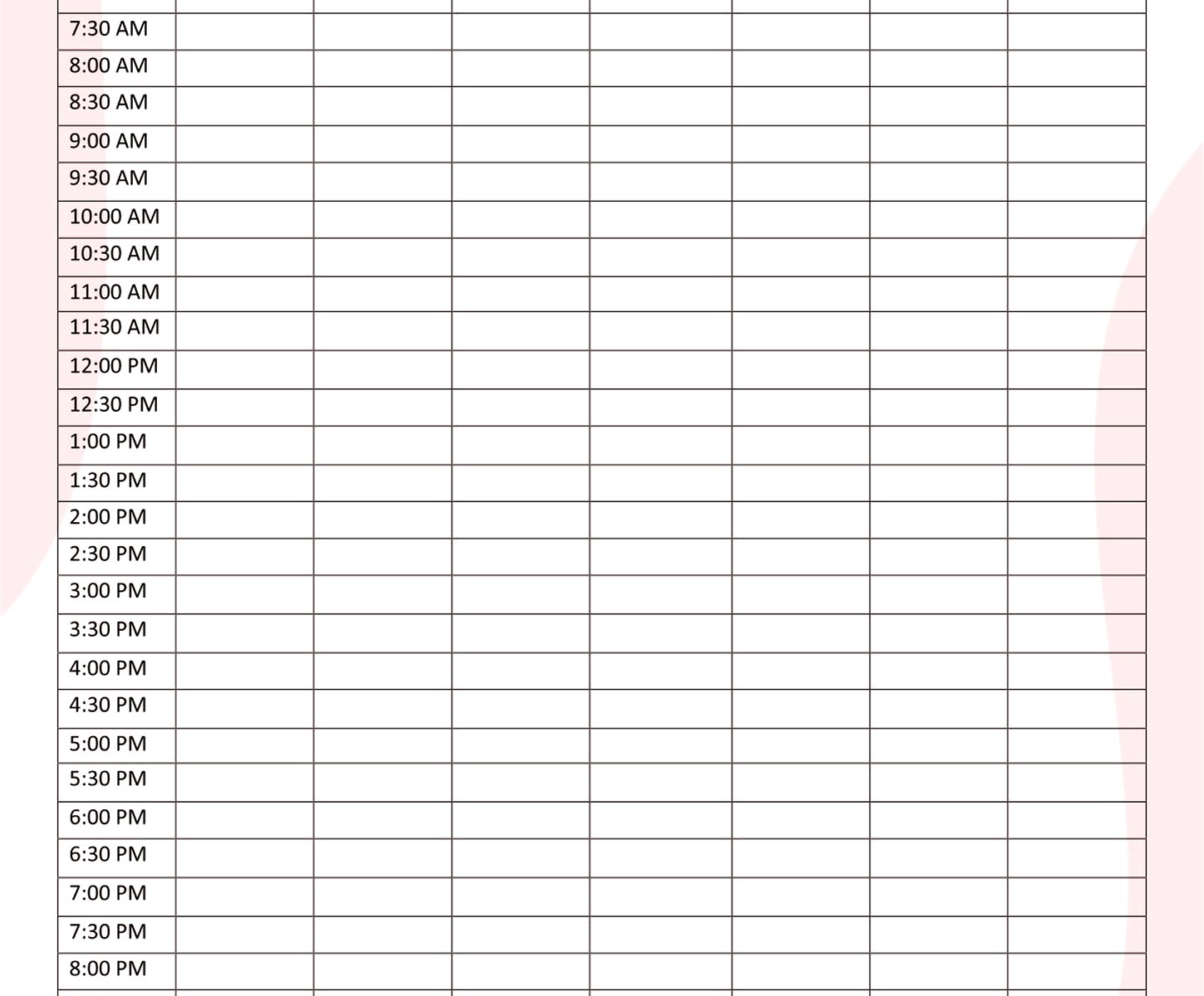
Their daily planner template has this weird thing where it includes a task list AND a schedule AND a notes section all on one page and it just feels cramped. Like I get what they were going for but it’s too much. I ended up deleting the task list portion and just keeping the hourly schedule.
Oh and another thing – the Excel templates have way more formula options than Google Sheets if you’re into that. You can set up automatic time tracking or calculate how many hours you’re spending on different categories. I’m not gonna lie, I spent an entire Saturday afternoon making mine calculate my billable versus non-billable hours and it was weirdly satisfying.
Notion Templates Are Great But There’s a Learning Curve
Wait I forgot to mention Notion earlier. So Notion has this whole template gallery and people in the productivity community are OBSESSED with it. I finally gave in and tried their schedule planner templates last month.
The basic weekly planner template is free and it’s actually really flexible. You can view it as a calendar, as a table, as a list – whatever works for your brain that day. This is gonna sound weird but I found myself using the calendar view in the morning and the list view in the afternoon when I needed to just check stuff off.
Setting it up takes longer than Google Sheets though. Like you gotta understand databases and properties and all this Notion-specific stuff. I watched two YouTube videos while folding laundry before I really got it. But once you do, you can link your schedule to other pages, add tags, create filtered views… it’s powerful.
Best Practices for Notion Schedule Templates
Okay so funny story, I set up this elaborate Notion system and then didn’t use it for a week because I made it too complicated. Here’s what actually made it usable:
- Start with their simplest template, not the fancy aesthetic ones people sell
- Only add properties you’ll actually fill in – I started with just Time, Task, and Category
- Use the template button feature for recurring appointments so you can add them with one click
- Link to your project pages if you have them but don’t feel like you have to build an entire second brain right away
Canva Has Free Printable Templates That Don’t Look Terrible
So if you want something that’s actually pretty to look at, Canva’s free schedule templates are decent. They’re designed to be printed which isn’t my usual thing but I tested a few because some of my clients prefer paper planners.
The weekly schedule layouts come in like fifty different aesthetic styles. Minimalist, floral, corporate, whatever. They’re all editable in Canva’s editor which is super user-friendly. You can change colors, fonts, add your own sections.
I downloaded the “Weekly Schedule Minimalist” one and customized it with my brand colors just to see how it would work for client-facing schedules. Took maybe twenty minutes and it looked professional enough that I actually started using it for my content calendar.
The downside is you gotta download it as a PDF each time you update it, so it’s not great for schedules that change constantly. Better for weekly planning sessions where you sit down once and map out the whole week.
What Actually Makes a Schedule Template Work
Here’s the thing nobody tells you – the template itself matters way less than whether it matches how you actually think about time. I’ve tested probably thirty templates this year and the ones I stuck with weren’t necessarily the prettiest or most feature-rich.
Time blocking works better in some templates than others. Google Sheets and Excel are great for this because you can literally block out chunks of time with colored cells. Notion works too but you gotta set up time ranges in your database properties.
For daily schedules, you need 30-minute or 1-hour increments depending on how granular you wanna be. I thought I needed 15-minute blocks but that was insane and made me feel like I was scheduling every breath I took.
Features That Actually Matter
- Easy to access – if you gotta dig through folders to find your template, you won’t use it
- Fast to update – I abandoned templates where adding one task took multiple clicks
- Visible at a glance – you should be able to see your day without scrolling forever
- Works on your phone – seriously this is huge, half my schedule changes happen when I’m not at my desk
Platform-Specific Tips That Made a Difference
For Google Sheets, use the mobile app and pin your schedule file to the top. You can edit on your phone pretty easily and it syncs instantly. Also, share it with yourself on Google Calendar if you want notifications – there’s a workaround using Zapier but that’s a whole other thing.
With Excel, save your template with your preferred formatting as a custom template in your user folder. Then you can start new weeks from that template instead of copying and clearing old data. Seems obvious but I didn’t figure this out for embarrassingly long.
Notion mobile app is honestly better than the desktop version for quick schedule checks. The desktop version is better for setup and heavy editing, but I found myself using the phone app throughout the day to check what’s next.
Canva templates work best if you use their mobile app to make quick edits before printing. Or keep the Canva file open in a browser tab and screenshot it for a digital version. Not elegant but it works.
Free Downloads I Actually Recommend
My client canceled last week so I spent an hour comparing all the free templates I’d collected and ranking them. Here’s what I’d actually download again:
Google Sheets “Weekly Schedule” from their template gallery – best for people who live in Google Workspace already. Zero learning curve.
Notion’s “Weekly Agenda” template – best if you want flexibility and don’t mind spending thirty minutes learning how it works. The database functionality is worth it.
Vertex42’s Excel templates – they have a free weekly schedule that’s really well designed with good formulas already built in. Better than Microsoft’s default options honestly.
Canva’s “Weekly Planner Minimalist” – best for printing or if you need something that looks professional for client-facing stuff.
Common Mistakes I Made So You Don’t Have To
Don’t color-code everything immediately. I made this elaborate color system with like eight different categories and then never remembered what purple meant versus lavender. Stick to three or four max.
Don’t put every tiny task in your schedule. I tried this for two days and wanted to throw my laptop out the window. Schedule blocks of time for “admin work” or “email” instead of listing every individual email you need to send.
Don’t switch templates every week because you saw a prettier one on Pinterest. Stick with something for at least a month before deciding it doesn’t work. Your brain needs time to adjust to any new system.
Actually use the notes section if your template has one. I ignored it for weeks and then realized it’s perfect for tracking why tasks got moved or noting if something took way longer than expected.
Making Templates Work With Your Actual Life
The templates are just starting points, you gotta customize them for your actual schedule. I work with clients across time zones so I added a column for time zones in my weekly template. Sounds basic but it saved me from so many scheduling mistakes.
If you have recurring commitments, set those up first as your anchor points. Then fill in variable tasks around them. I blocked out my standing meetings and workout times first, then everything else got scheduled around those.
Leave buffer time between things. I learned this the hard way when I scheduled back-to-back calls and had no bathroom breaks or time to prep for the next thing. Now I automatically add 15-minute buffers.
Review your schedule the night before, not morning of. Game changer. I spend five minutes before bed looking at tomorrow’s schedule and I sleep better knowing what’s coming.
Most of these free templates work fine as-is but they get way better when you tweak them to match how you actually work. Don’t be afraid to delete sections you don’t use or add ones you need. It’s your schedule, make the template work for you not the other way around.
