
Digital Productivity, Online planners, Planners
Excel Daily Schedule Template: Free Downloads & Guide
Mar
Okay so I’ve been testing Excel daily schedule templates for like three months now because honestly my old system was a disaster and I kept missing client calls which is… not great when you’re supposed to be teaching productivity.
The Templates I Actually Use (Not The Pretty Ones)
Here’s the thing nobody tells you about Excel schedule templates – the gorgeous ones with all the colors and fancy formatting? They’re terrible for actual daily use. I downloaded this one template from Office’s official library that had like gradient fills and custom fonts and my laptop literally slowed down every time I opened it. Plus it took forever to load which defeats the entire purpose when you just need to check what’s next on your schedule.
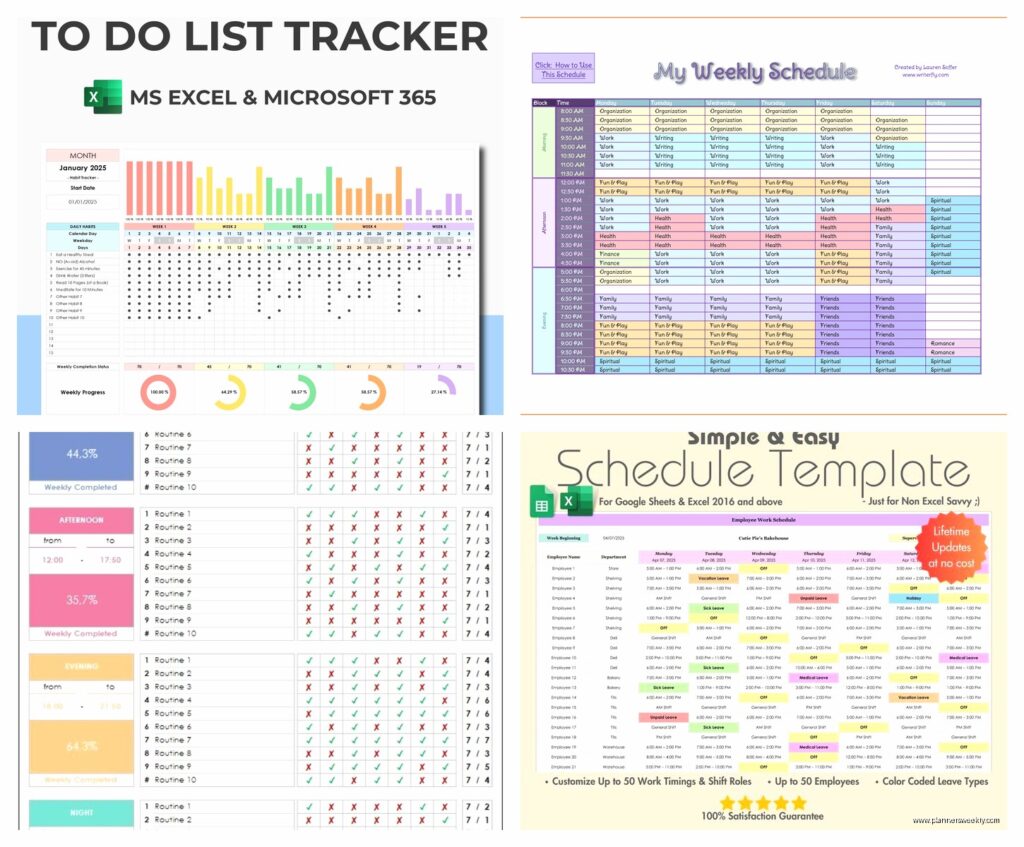
The template I actually use now is super basic. It’s literally just columns for time slots, task description, priority level, and a notes section. That’s it. I found it on Vertex42 which has a ton of free templates and they’re all pretty no-nonsense.
Time Blocking Template Setup
So the first one I’m gonna recommend is the time blocking style template. You set it up with 30-minute intervals starting from whenever you wake up. Mine starts at 6am because I’m one of those annoying morning people but you can adjust it obviously.
- Column A: Time slots (6:00 AM, 6:30 AM, etc.)
- Column B: Scheduled task or activity
- Column C: Actual task (what you really did – this is key)
- Column D: Priority marker (I use H/M/L)
- Column E: Notes or why you got derailed
The “actual task” column changed everything for me because I could finally see where my time was actually going versus where I planned it to go. Turned out I was spending like 2 hours a day on email when I thought it was maybe 30 minutes. Oops.
Free Download Sources That Don’t Suck
Wait I should actually tell you where to get these things. So Microsoft’s official template gallery is the obvious first stop – just open Excel, go to File > New, and search “daily schedule.” The problem is there’s like 50 options and most of them are weirdly complicated or designed for specific industries.
The ones I actually downloaded and tested:
- Microsoft’s “Daily Schedule” (the basic one with the blue header) – solid, nothing fancy
- Vertex42’s “Daily Schedule Template” – my current favorite
- Template.net’s hourly planner – good if you need more granular time tracking
- Smartsheet’s daily schedule – this one’s actually more robust than you’d expect
Oh and another thing – some of these sites make you sign up with an email to download which is annoying but if you use a throwaway email address it’s fine. I have one specifically for template downloads at this point.
Setting Up Your Template The Right Way
Okay so funny story, I spent like a week using this beautiful template I found and then my Excel crashed and I lost everything because I didn’t save it as a template file. Don’t be like me.
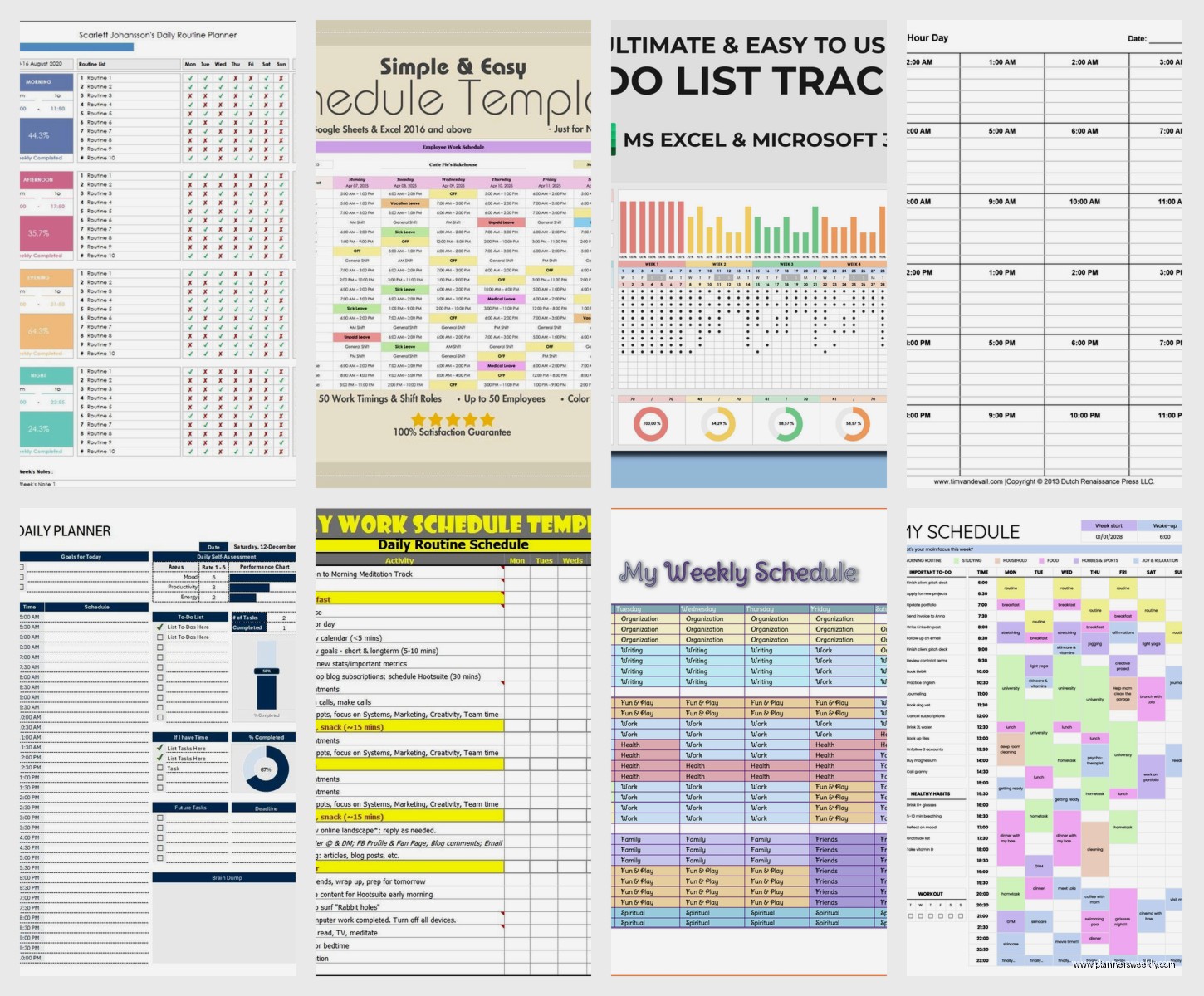
When you download or create your schedule template, you gotta save it as an actual Excel Template file (.xltx extension). Here’s how: File > Save As > Browse > then in the “Save as type” dropdown select “Excel Template.” This way you can open a fresh copy every day without overwriting your template.
Customization Tips That Actually Matter
The default templates are fine but here’s what I changed to make mine actually useful:
Conditional formatting for overdue tasks: I set up a rule so that if the current time is past my scheduled time and I haven’t marked it complete, the cell turns light red. Not screaming red because that’s stressful, just a gentle reminder that I’m behind. You do this through Home > Conditional Formatting > New Rule.
Drop-down lists for recurring tasks: I have like 10 things I do every single day (client check-ins, social media review, email processing, etc.) so I made a dropdown list using Data Validation. Now I just select from the list instead of retyping everything. Saves probably 5 minutes a day which doesn’t sound like much but it adds up.
Auto-date formula: At the top of my template I have a cell that shows today’s date using =TODAY() formula. Sounds basic but it’s helpful when you’re looking at a printed version and can’t remember if this was Monday or Tuesday’s schedule.
The Hourly vs Block Scheduling Thing
This is gonna sound weird but I actually keep two different templates now. One is hourly (broken down by hour) for days when I have a lot of meetings and appointments. The other is block scheduling (chunks of 2-3 hours) for deep work days.
The hourly template works better for structured days. Like today I had three client sessions, a dentist appointment (finally), and a product review deadline. I need to see exactly what’s happening at 2pm versus 3pm.
But on days when I’m just writing blog posts or testing products, the block schedule is way better. I don’t need to know that from 9:13 to 9:47 I’m testing gel pens. I just need a morning block that says “product testing” and that’s enough.
My Actual Daily Template Structure
Since people always ask what mine looks like specifically, here’s the breakdown. Top section has the date, day of week, and a “focus area” cell where I write my main priority. Then the schedule itself:
- Morning routine block (6-8am) – I don’t break this down further because it’s always the same
- Deep work block 1 (8-11am) – most important stuff goes here
- Admin/meetings (11am-1pm)
- Lunch and life stuff (1-2pm)
- Deep work block 2 (2-4pm)
- Wrap-up and planning (4-5pm)
- Evening flex time (5pm onward) – rarely scheduled
I color code these sections with very light background colors – nothing intense, just enough to visually separate the blocks. My cat walked across my keyboard while I was setting this up initially and somehow made the morning routine block bright purple, which I kept because it’s kind of funny.
Integration With Other Tools
Wait I forgot to mention – if you’re using other productivity tools, Excel templates can actually play nice with them. I export my Google Calendar to Excel every Monday using a workaround (there’s no direct export but you can use Google Sheets as a middleman then copy to Excel). This gives me a starting point so I’m not manually entering every meeting.
The process is kind of janky but it works: export Google Calendar to Google Sheets using one of those third-party tools, then download the Sheet as Excel, copy the appointments into your daily template. Takes maybe 10 minutes on Sunday night to set up the week.
Print vs Digital Debate
Okay so I’m mostly digital but I tested printing these templates for a month because one of my coaching clients swears by paper schedules. The verdict: it depends entirely on your work setup.
If you’re at a desk all day with your computer, digital makes way more sense. You can update things in real-time, use formulas to calculate how much time you spent on stuff, and you don’t waste paper.
But if you’re moving around a lot or work in a setting where pulling out your laptop is awkward, printed schedules are actually great. I worked with a client who’s a nurse and she prints her schedule template, folds it, and keeps it in her scrubs pocket. Works perfectly for her.
For printing, simplify your template first. Remove the conditional formatting and fancy formulas because they don’t matter on paper. Just keep the basic grid structure.
Weekly View Template
Oh and another thing – I also have a weekly overview template that shows all seven days in columns. This one’s less detailed, just shows the big blocks and major commitments. I reference this on Sunday evenings when I’m planning the week, then break it down into daily templates.
The weekly template is structured with days across the top (Monday through Sunday) and time blocks down the left side. I only show three time blocks per day: Morning, Afternoon, Evening. Any more detail than that and it gets cluttered.
Common Mistakes I Made (So You Don’t Have To)
Over-scheduling buffer time. I used to literally schedule “buffer time” between tasks which is ridiculous. Just leave gaps. Don’t name them. The gaps are for bathroom breaks, coffee refills, staring into space – they don’t need a label.
Making it too pretty. I spent hours formatting my first template with custom colors matching my brand or whatever. Total waste of time. Function over form with these things.
Not leaving weekend space for life. My first templates were Monday through Friday only and then I’d be lost on weekends. Even if your weekends are unstructured, having a basic template helps with things like grocery shopping timing and laundry planning. This is gonna sound boring but it actually reduced my Sunday anxiety by a lot.
Trying to schedule every single minute. You’re not a robot. I learned this the hard way when I had “respond to emails: 14 minutes” on my schedule. Just no. Block out 30-60 minutes for email and be done with it.
Mobile Situation
The Excel mobile app is… fine. Not great, not terrible, just fine. I have my templates saved in OneDrive so I can access them on my phone, and I can make quick updates throughout the day. But editing Excel on a phone screen is annoying so I mostly just view it mobile and save actual edits for when I’m back at my computer.
There’s also Excel Online which works better than the mobile app honestly. If I need to update my schedule from somewhere without my laptop, I’ll use the browser version on my phone rather than the app.
Tracking Template Performance
This is where Excel really shines over paper planners. At the end of each day, I have a “completion rate” calculation that shows what percentage of my planned tasks I actually did. It’s just a simple formula: (completed tasks / total planned tasks) * 100.
I keep a separate tracking sheet in the same workbook where I log my daily completion rate, total hours worked, and biggest time waster. After a month of data, you start seeing patterns. Like I noticed my completion rate drops to like 40% on Thursdays because that’s when I have the most meetings, so now I don’t schedule as much deep work on Thursdays.
The Notes Section Strategy
Most templates have a notes section and I used to ignore it but now I use it religiously. Throughout the day I jot down quick notes about interruptions, ideas that came up, or why something took longer than expected. This has been super valuable for improving my time estimates.
Like I thought blog post writing took me 2 hours but my notes showed I was getting interrupted by Slack notifications constantly. So now I block Slack during writing time and guess what, blog posts actually do take 2 hours when I’m not distracted every 10 minutes.
Version Control Because Future You Will Thank You
Save your daily schedules with the date in the filename. I use this format: DailySchedule_YYYY-MM-DD. So today would be DailySchedule_2025-01-15. This way they sort chronologically in your folder and you can go back and review what you did last Tuesday when your boss asks what you worked on.
I keep the current week in a “Active” folder and everything else gets moved to an archive folder at the end of each week. Every few months I go through and delete really old ones unless there’s something notable I want to remember.
My template has evolved probably 15 times in three months as I figured out what works. Don’t be afraid to keep tweaking it. The best template is the one you’ll actually use consistently, not the one that looks impressive or has every possible feature.
